What you'll learn
- The 3 parts of every automated review request: trigger, message, link
- A 7-step setup that connects your POS, booking tool or CRM to the request
- When to send by business type, and how many reminders to allow
- Where Google draws the line on incentives, gating and selective asking
- How far to automate review replies, and what to check before you buy a tool
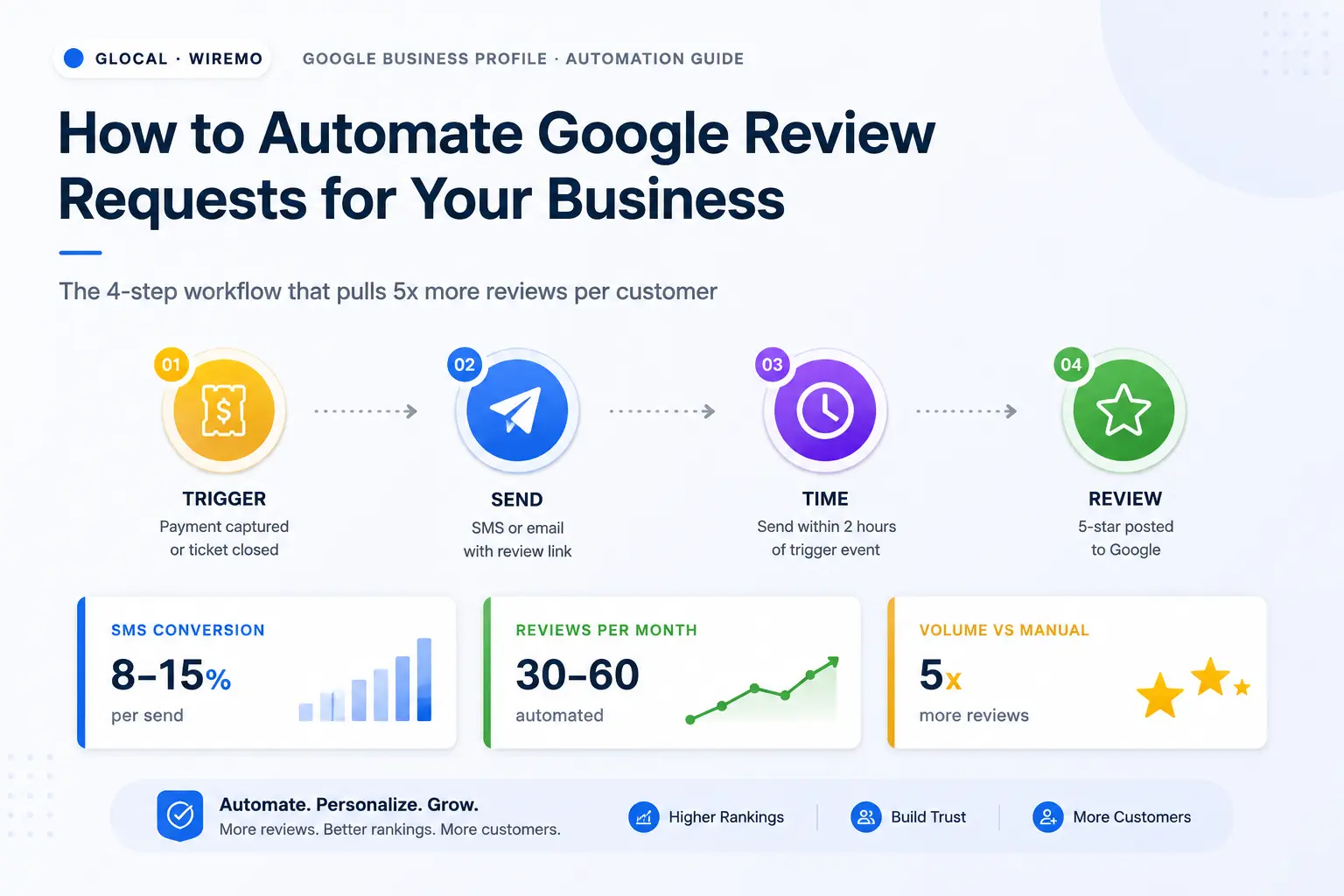
Google review automation is a workflow that sends each customer your Google review link after the sale, appointment or job, without anyone on your team having to remember. A trigger in your POS, booking system or CRM adds the customer, the tool sends an email or text with the link, follows up once or twice, and stops when the customer leaves a review or opts out. Google allows this as long as you ask every customer the same way and offer nothing in return.
Automated Google reviews, in the sense of reviews written by software, are not allowed. Automation sends the request; the review still comes from a real customer who decides to write one. Plenty of profiles need the help: in our audit of 286 Google Business Profiles, 71 (25%) had not received a single new review in the 90 days before the audit.
Review request automation works the same way for one shop or a group of clinics. What changes is where the trigger lives and how many sending accounts you need.
Why Automate Review Requests
Manual requests have a ceiling. The owner asks at checkout on a quiet Tuesday and forgets on a busy Friday. The sign by the register fades into the background. A few weeks in, whether a customer gets asked depends on who is working that shift. An automated request goes out for every completed job, whether anyone remembered or not.
MANUAL ASKING
Depends on who is on shift
- Staff ask when they remember
- Busy days get skipped
- No record of who was asked
- No reminder if the customer forgets
AUTOMATED REQUESTS
Every customer, every week
- Fires on each completed job or order
- Sends on busy days too
- Logs sent, opened, clicked and reviewed
- Follows up once or twice, then stops
The gain comes from coverage. Say 400 customers come through in a week and your team remembers to ask 20 of them: 380 people never hear the question. Automation asks all 400. How many of them write a review depends on your trade, the quality of your contact list and your timing, so measure your own rate (see "Measure It Before You Tune It" below) instead of trusting an industry average.
The Local-Pack Ranking Effect
Google says it in its own help article on how local ranking works: "More reviews and positive ratings can help your business’s local ranking." Review count is part of what Google calls prominence. Our guide to the Google local pack covers what else decides who appears there. A steady flow also keeps your newest reviews recent, and recent reviews are the ones customers read first.
Automation fixes a common reason a profile stops getting reviews: nobody asked. To see whether the extra reviews move your Map Pack position, track the same keyword on a geo-grid before you switch automation on and again a few months later. GTrack's free plan covers grids up to 5x5.
How Review Automation Works
Every Google review automation has three parts: the trigger, the message and the link. Get all three right and a customer goes from your message to Google's rating box in two taps. If one of them breaks, the request fails and nothing tells you.
Trigger
Payment captured, job closed, appointment completed, order delivered
Message
Email or SMS with the customer's name and one link
Link
Your Google review URL, which opens the rating box
The Trigger
The trigger is the event that starts the request: payment captured, appointment completed, ticket closed, order delivered, job marked done in the CRM. Pick the moment your customer would describe as "it's finished and it went fine." Mid-service is too early, because they have nothing to review yet. A week later is too late, because they remember less and your email sits under thirty newer ones.
The Message
The message is what the customer sees. For SMS: one or two sentences, their first name, and the link. For email: a short subject line, their name, one paragraph and a single button. Skip the pitch, the newsletter footer and the five-question survey before the review. Each extra step costs you people who would have clicked. Our review request templates give copy-ready wording for each channel.
The Review Link
The link opens Google's rating box for your profile. Google's own steps: open your Business Profile, select Read reviews, then Get more reviews, and copy the link (Google Help). Google lets you download the review QR code from a computer browser only, not from the mobile app. Our guide on how to get your Google review link covers the other routes, including a Place ID link. For receipts, counters, table tents and invoices, the free Google review QR code generator turns the link into a print-ready PNG. Every automation tool sends this same link, so test it before anything else.
How to Set Up Automated Review Requests
The order below works for any tool, whether you automate customer reviews for one shop or for twenty branches. If you have not picked a tool yet, compare review management software by request channel and price first. Most of the time goes into steps 2 and 6, and step 2 needs a developer if you connect your system through an API.
- Get and test your review link. Open it on a phone that is not signed in to your Google account. It should land on the right profile with the rating box open. If two listings show up, sort out the duplicate first.
- Decide where the trigger lives. List the system that knows when a job is done: POS, booking calendar, field-service app, CRM or store platform. Then check how it can pass the customer to your review tool. From most to least automatic: a native integration, an API call or webhook, an automation platform such as Zapier or Make, and a CSV export you upload once a day. A daily CSV is slower but it still asks everyone.
- Write the first message and at most two reminders. Use the customer's first name, your business name, and what they bought ("your boiler service on Tuesday"). Keep each reminder shorter than the first message.
- Set the sending identity and consent. Send email from your own Gmail or company domain, under a person's name, with a working unsubscribe link. Send texts only to customers who agreed to receive them (see the SMS section below).
- Set the timing and a daily cap. Start with the delays in the timing table below. A daily cap protects your sender reputation when a CSV import adds 500 people at once.
- Test it as a customer. Add yourself and a colleague. Check that the message arrives, the name and service fill in, the link opens the right profile on a phone, and the sequence stops when you click unsubscribe or leave a test review.
- Switch it on and read the numbers after two to four weeks: requests sent, opens, clicks and new reviews. Fix the trigger first if sends are low, the message if opens are low, and the link if clicks do not turn into reviews.
GLocal, Wiremo's Google review management software, follows the same steps. You connect a Gmail account or your own SMTP server (GLocal never sends from its own address), build an email sequence with as many steps as you want, set the send time and time zone per step, and add customers by hand, by CSV, or through the Review Requests API from your booking system or CRM. Each customer's sequence stops when GLocal detects their Google review, when they click "I already left a review" in the footer, or when they unsubscribe. The Overview tab shows requests sent, open rate, click rate and reviews captured.
Automation covers the customers you would otherwise forget. For the rest of the toolkit (counter signs, NFC cards, the verbal ask), see other ways to get more Google reviews.
End-to-End Workflow Walkthrough
The 7-minute walkthrough below shows the setup inside GLocal: connecting a Google account or custom mail server, setting daily limits and time zone, editing the email template with variables, importing a customer list, reading the statistics and sending a one-off request. The chapters from 4:25 cover review filtration, an optional feature; read the policy section below before you switch it on.
Video chapters: Automation Settings (0:15) · Email Template (1:15) · Customer List (2:05) · Statistics (2:38) · Manual Request (3:16) · Review Filtration (4:25) · Filtered Reviews Dashboard (6:48)
SMS and Email Channel Automation
Review automation runs on two channels. Email works whenever you have an address and costs nothing per message. SMS reaches people faster, on the phone they will use to write the review, but it needs consent and, in the US, carrier registration. Many businesses run both: SMS where the customer agreed to texts, email for everyone else.
SMS Review Requests
A text shows up in the notification bar and the link is one tap away, which is why many review tools lead with SMS. It also comes with more rules than email:
- Consent. Tell customers at booking or checkout that they will get a text after the visit, and only text those who agreed.
- Registration in the US. Twilio's documentation says: "Anyone sending SMS/MMS messages over a 10DLC number from an application to the US must register for A2P 10DLC" (Twilio). Your SMS provider submits the brand and campaign registration, but you supply the business details.
- Opt-out. Honour STOP replies and keep it to one request plus one reminder at most.
EXAMPLE TEXT
Sent 2 hours after the appointment is marked complete
For in-person services, send the text within a few hours of the visit, while the customer still remembers the stylist's name or what the technician fixed. A template that fits most trades: "Hi [Name], thanks for visiting [Business] today. Would you mind leaving us a quick Google review? It takes 30 seconds: [link]". Two sentences and the link at the end, where the eye lands.
Once a customer's sequence ends, leave them out of new requests for a few months. Repeated texts draw spam complaints, and carriers can filter numbers that collect them.
GLocal sends review requests by email today; SMS sequences are listed as coming soon on the product page.
Email Review Requests
Email is the default channel for B2B, e-commerce and online services, where you often have no phone number. It has no per-message cost and no carrier registration, and a reminder or two picks up customers who missed the first email.
A review-request email that gets clicks is short: a subject line under 50 characters, the customer's first name in the greeting, one paragraph that thanks them and asks, one button labelled "Leave a Google review", and a one-line sign-off. Put nothing below the button that competes with it.
Email follows a different clock from SMS. Few people check their inbox two hours after a haircut. Start with the next day, between 18 and 36 hours after the service or delivery, when the customer next opens their email and still remembers the visit. Then compare that delay against your own numbers after a month.
Review Request Timing Triggers
Pick the trigger before you write a word of copy. A perfect message sent at the wrong moment still goes unanswered: ask before the customer has the result and they have nothing to say; ask a week later and the email lands under everything that arrived since.
Review Triggers by Business Type
Use these as starting points. Your own sent-to-review numbers by delay will tell you more than any table.
| Business type | Best trigger | Starting delay |
|---|---|---|
| Restaurant, cafe, retail | Payment captured | 2 hours (SMS) or next day (email) |
| Salon, spa, dental | Appointment marked complete | 2 hours (SMS) or next day (email) |
| Home services (plumbing, HVAC) | Job ticket closed in the CRM | 24 hours |
| Auto repair, car dealers | Vehicle handed back or delivered | 4 hours |
| E-commerce | Delivery confirmed | 3 days |
| B2B services, agencies, law firms | Project milestone signed off or case closed | 48 hours |
| Medical, clinics | Appointment marked seen | 24 hours |
Online stores collect two kinds of reviews: Google reviews of the business, and product reviews on the store itself. Product reviews need their own request after delivery, which an e-commerce review platform such as Wiremo's sends automatically from Shopify, WooCommerce or Squarespace orders.
Review Triggers to Avoid
Do not fire the request on a booking or a booking confirmation. The customer has not had the experience yet, and the message shows them your system is not paying attention. The same goes for deposits, cancellations and no-shows: they never received the service.
Some exclusions are housekeeping: staff and family, duplicate contacts, people who unsubscribed, and repeat customers you asked in the last few months. Rating is not one of them. Leaving people out because they scored you low in a survey is the selective asking Google's policy forbids (next section). If a customer has an open complaint, resolve it first; once it is closed, they get the same request as everyone else.
Stay Inside Google's Review Policy
Google wants you to ask. Its tips for getting more reviews say: "To leave reviews, you can ask customers to visit a Google link or scan a QR code." The limits sit in its policy for content on Maps, which says merchants may not:
- "Offer incentives – such as payment, discounts, free goods and/or services - in exchange for posting any review or revision or removal of a negative review"
- "Discourage or prohibit negative reviews, or selectively solicit positive reviews from customers"
- "require or pressure users to leave ratings or write reviews while on the premises"
- Merchants asking staff to collect "a certain number of reviews" or reviews "that include specific content"
For an automated workflow, that comes down to three settings. Send every customer the same message with the same Google link. Tie no discount, prize draw or gift to the review. Put no rating step in front of the link that sends only happy customers to Google.
What About Review Filtration?
Review filtration, also called review gating, puts a rating page between the request and Google. High ratings see a "Review us on Google" button; low ratings get a private feedback form. Many review tools offer it, GLocal included. In GLocal it is an optional setting, and the Review Filtration tab warns that review filtering can conflict with Google's review policies and that you accept responsibility for the consequences when you enable it.
Google's policy names "selectively solicit positive reviews" as prohibited, and a page that routes only happy customers to Google fits that description. If you want private feedback as well, collect it through a separate channel, such as a reply-to inbox or a survey from your help desk, and keep the review request identical for everyone.
Automating Review Replies
Once reviews come in, someone has to answer them. Our guide shows how to see your Google reviews and reply on a computer or phone. Google's ranking article says "Positive reviews and helpful replies can help your business stand out." In our 286-profile audit, 71% of profiles in the top 3 for their own category answered at least 80% of recent reviews, against 47% of those in places 4 to 10 (full study; a small sample, so read it as a pattern, not proof that replying moves you up).
Safe to automate: alerts for every new review, AI-drafted replies, and routing each review to the person who handles that location. Keep a human on the final click, and on anything that mentions health, money, refunds, staff by name or a legal dispute. Fully automatic replies tend to go wrong in the same ways: the same three sentences under every review, a cheerful template under a complaint, or a draft that promises something your business does not offer.
GLocal drafts up to three AI replies per review in your chosen tone and language and can email them to you for approval, with Post Reply and Edit First buttons in the email. Automatic posting without approval is not available in GLocal at the time of writing. For a one-off answer, the free Google review reply generator writes a draft from the review text, and our guide to responding to negative Google reviews has templates for the hard ones.
Google Review Automation Mistakes
When review automation underperforms, look for one of these seven causes.
Wrong link
Linking to your homepage or your Maps listing instead of the review URL. The customer hunts for a button, cannot find it and gives up. Link straight to the rating box.
Too many reminders
Asking the same person again and again reads as spam. One request, two reminders at most, stop when they review or opt out, and do not re-enrol them for months.
Filtering by rating
Sending the Google link only to customers who rated you highly is selective asking under Google's policy. Ask everyone who completed a purchase and handle complaints in a separate channel.
Ignoring the reply side
A workflow that brings reviews in but leaves them unanswered is half a system. Reply to each new review within a day or two, from the same dashboard if you can.
Sending from no-reply addresses
Customers reply to review emails with questions and complaints. A no-reply@ address throws those away. Send under the owner's or manager's name from an inbox someone reads.
Dropping the in-person ask
A spoken "we'd appreciate a Google review, you'll get a link" at handover primes the customer for the message. Do not give staff review quotas or ask people to post while still on site: Google's policy bans both.
Generic message copy
A message without the customer's first name, your business name and what they bought reads as bulk mail. Fill in those three variables in every template.
Measure It Before You Tune It
Four numbers tell you whether the workflow works: requests sent (is the trigger firing for every customer?), open rate, click rate, and new Google reviews per month. Compare them month over month for the same location. If sends drop, check the trigger. If opens drop, check the sender name and subject line. If clicks hold but reviews do not follow, open the link on a phone and walk through it as a customer.
Choose a Review Automation Tool
Most review request automation tools cover the same basics. The right one depends on three things: how many locations you run, where your trigger lives (POS, CRM, calendar, store platform), and whether you want replies handled in the same place. A single location can run the whole workflow from one focused tool. A group of locations needs per-location settings and reporting that rolls up.
What to Check Before You Buy
- Trigger connection: a native integration with your system, an API or webhook, Zapier or Make support, or at least a CSV import.
- Channels: email, SMS, or both, and whether SMS is live or on the roadmap.
- Sending identity: emails from your own Gmail or domain, under your name.
- Follow-ups and stop rules: how many reminders, and whether the sequence stops when the customer reviews or unsubscribes.
- Per-location setup: separate customer lists, templates, sending accounts and caps for each profile.
- Reporting: sent, opened, clicked and reviews captured, by location and period.
- Replies: new-review alerts, AI drafts, and approval before anything is posted.
- Price per location: whether the plan is billed per location, and how many emails, texts or AI replies it includes each month before add-ons.
- Policy defaults: no incentive features, and filtration off unless you choose otherwise.
Single-Location Review Stack
SINGLE LOCATION
One tool, one trigger
- Review link plus a QR code at the counter
- Email sequence (SMS where customers opted in)
- New-review alerts and AI reply drafts
- Monthly look at sent, opened, clicked, reviewed
MULTI-LOCATION
Per-location setup, one dashboard
- A sending account and daily cap per location
- One integration or API key per location
- Review inbox routed by branch
- Roll-up reporting across locations
For one location, the workflow is the 7 steps above with a single trigger source. Most of the effort goes into getting customer emails or phone numbers out of the POS or calendar every day, so pick a tool that connects to the system you already use.
Multi-Location Review Stack
GLocal handles review requests per Business Profile: each profile has its own customer list, email sequence, sending account and daily cap, and its own API key, so your booking system can enrol a customer with the branch that served them. The same dashboard holds the review inbox, AI reply drafts, scheduled posts and reports. You can see the review side on the Google review management software page and the full product on Google Business Profile management software. Plans start at $29.99/month with a 30-day money-back guarantee; there is no free plan.
Whichever tool you choose, hold it to the same rules as Google's tips page: ask every customer, offer nothing in return, and reply to what comes in.
Google Review Automation FAQ
How do I automate Google review requests?
Copy your review link from your Business Profile (Read reviews, then Get more reviews), connect the system that knows when a job is done to a review request tool through an integration, API, Zapier or a daily CSV, write one message and up to two reminders, and test the whole flow as a customer before you switch it on.
Is Google review automation against Google's policy?
No. Sending every customer the same request by email or SMS is allowed. Google's policy prohibits incentives in exchange for reviews, discouraging negative reviews, selectively asking only happy customers (review gating), pressuring people to review on the premises, and giving staff review quotas.
How can I automate review requests for each of my business locations?
Give each location its own review link, customer list, sending account and trigger. In GLocal, every Business Profile has its own sequence and API key, so each branch's booking system or CRM sends its customers to the right profile.
Can Google email customers a survey after a transaction?
Yes, for online stores. Google Customer Reviews is a Merchant Center program: shoppers opt in at checkout and Google emails them a survey after delivery. Those answers count toward the store ratings (seller ratings) shown on Shopping ads and Search ads. Google states they are separate from Business Profile reviews, so you still need your own requests for Maps reviews.
Should you automate replies to Google reviews?
Automate the drafting and the alerts, and keep a person on approval. Fully automatic replies tend to repeat themselves, answer complaints in the wrong tone, or state things that are not true for your business. A person who reads each AI draft before it posts catches all three.
Can AI generate Google reviews, and is there an API?
No tool may write reviews for you: reviews that do not come from a real customer experience break Google's policy, the same as buying or faking reviews. Google's Business Profile API lets profile managers list reviews and post or delete replies; it has no way to create a review.