TL;DR
- A Google review link opens the review form of your Business Profile, so customers skip the search.
- On a computer: open your Business Profile, select Read reviews, then Get more reviews, then Copy.
- The same window has a plain QR code, but only in a computer browser.
- No access to the profile? Build the URL from the business's Place ID.
- Ask every customer for an honest opinion. Never reward reviews or tell people what to write.
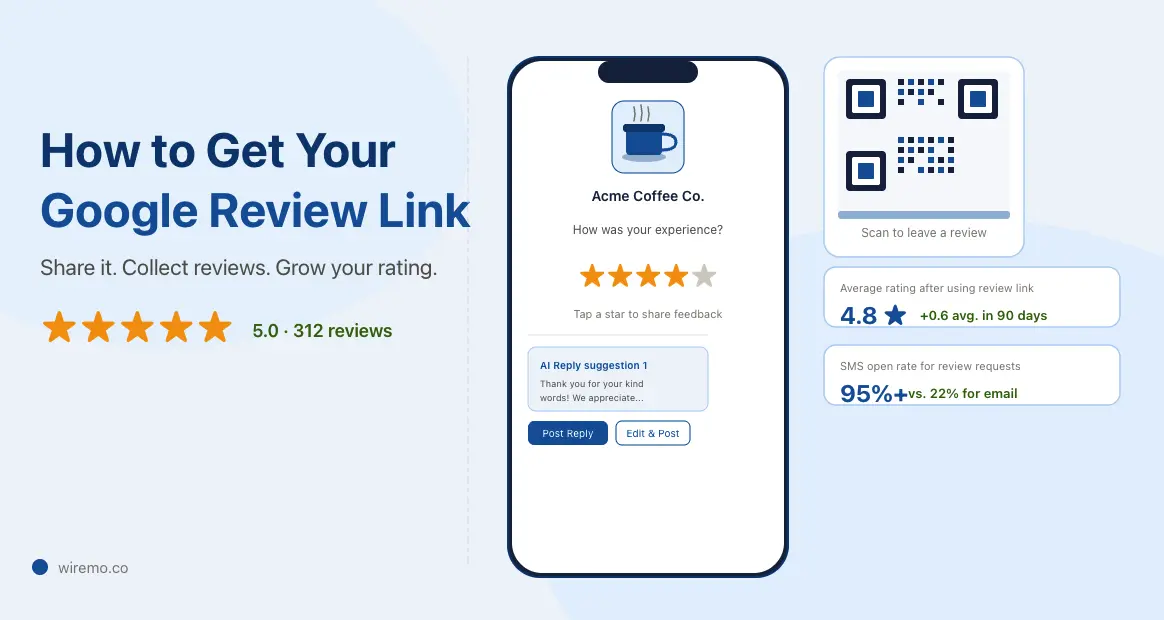
A Google review link is a short URL that opens the "write a review" form of your Google Business Profile (GBP). A customer taps it, picks a star rating, and writes a few words without searching for your business first. You can copy yours in under a minute, on a computer or in the Google Maps app.
The fastest way to get the URL and a print-ready QR code together is Wiremo's free Google review QR code and link generator. Search your business, pick a template, and the files arrive by email. Below you'll find Google's own steps, a method for when you don't manage the profile, where to share it, and fixes for when it doesn't work.
How to Get Your Google Review Link
Google keeps it in the window it uses for review requests. Its help page, Create a Google link or QR code to request reviews, gives the path as Read reviews, then Get more reviews (checked September 28, 2026).
On a Computer
- Open your Business Profile. Sign in with the Google account that owns or manages the profile, then search for your business name. The management panel appears in the search results.
- Select Read reviews, then Get more reviews. On some profiles the button in Search is labeled Ask for reviews. It opens the same window. The Read reviews button is also where you see and reply to your Google reviews.
- Select Copy. The URL is now on your clipboard. The window also has buttons to send the request by email, WhatsApp, or Facebook.
- Save the QR code if you need one. Right-click the code in the same window and choose Save image as...
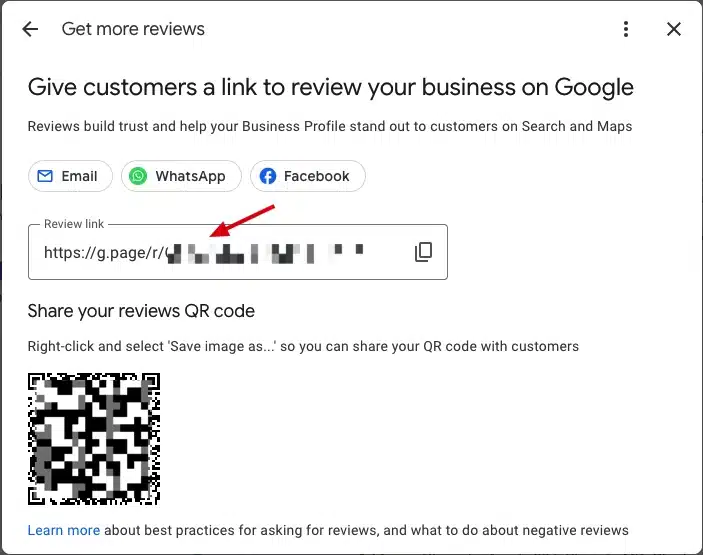
Google only generates this QR code in a computer browser, not on mobile devices (same help page). It's a plain image with no design around it: fine for a website, too bare for a counter sign.
On a Phone
You can still copy the URL on a phone. Open the Google Maps app with the account that manages the profile, tap your profile picture, and open your Business Profile. Tap Get more reviews (or Ask for reviews), then copy or share. Button labels move between app versions, so if you can't find them, use the computer steps.
For Several Locations
Each Business Profile has its own URL. Copy one per location, label it with the location's name and address, and keep them in one shared sheet so staff never send the wrong one.
Tip: Test before you send. Open the URL on your phone in a private browser window, then on a second device, and check that it opens the form for the right location.
What the Link Looks Like: g.page, Place ID, Short Link
There are three common formats, and all of them open the same form. Some people call it a Google reviews link; it's the same thing.
- Google's short URL. The Copy button gives you an address that usually starts with
g.page/r/, followed by a code and/review. Only people who manage the profile can copy it. - The Place ID URL. Every place on Google Maps has a permanent Place ID. Add it to the end of
https://search.google.com/local/writereview?placeid=and the result opens the same form. Anyone can build it, with or without access to the profile. - A branded short URL. Generators wrap the Place ID address in something easier to print, read out, or type. Wiremo's look like
gorate.biz/qr/your-business, and you choose the last part.
Customers must be signed in to a Google Account to post. According to Google Business Profile Help, they can create one with a non-Gmail email address.
How to Get a Google Review Link Without Business Profile Access
You don't need to manage a profile to send people to its review form. Agencies waiting for access, marketers, and new staff can use either of two routes.
Build It from the Place ID
- Open a Place ID finder. Wiremo's free Google Place ID finder needs no API key and also shows the finished review link. Google's own Place ID Finder, a map on its developer site, works too.
- Type the business name and pick it from the suggestions.
- Copy the Place ID, a long string of letters and numbers.
- Paste it after
https://search.google.com/local/writereview?placeid=and open the result to test it.
Use a Generator
Wiremo's generator (linked at the top) finds any business on Google Maps and builds the Place ID address for you. It adds a short URL and a QR code. For a service-area business that doesn't show an address, paste its Maps URL instead of searching by name.
If a business isn't on Google Maps at all, there's nothing to link to yet. The owner has to create a Business Profile first.
Turn Your Link Into a Printable QR Code
A QR code carries the same address for customers standing in front of you. Anything you print needs a design around the code that tells people what it's for.
Wiremo's generator does this in three steps: search your business, pick one of 13 print-ready templates, and name your short URL. The finished high-resolution PNG arrives by email with your code already placed. Templates include a review card, a poster, a counter sign, table stickers, a door sticker, a receipt block, a menu insert, and a packaging insert. It's free, needs no account (only an email address to receive the file), and works on a phone as well as a computer.
Put the printed code where customers already pause:
- Counter or reception desk. People wait there with a phone in hand while they pay.
- Tables. Restaurants and cafes put a sticker where guests wait for the bill.
- Receipts and invoices. A small block at the bottom reaches customers who never pass a counter.
- Packaging and delivery bags. An insert reaches online and takeaway customers.
- The door. A sticker at eye level catches people on the way out.
Field staff can hand over a card at the end of a job. After printing, scan the code with two different phones before you put it out.
Where to Share Your Review Link
Send it right after a good experience, in the channel the customer already uses with you. Google suggests receipts, thank-you emails, the end of a chat, and a QR code displayed in your store.
Text Message
A short text within a day of the visit or job is read on the same phone that opens the form. Keep it to one sentence:
Hi {first name}, thanks for choosing {business}. If you have a minute, we'd appreciate an honest Google review: {link}
Send one short thank-you email with the URL as the main button, from a named person rather than a no-reply address. Put the ask at the top, not under promotions. If the customer doesn't respond, one polite reminder a few days later is enough. For ready-made messages, see our 15 templates for asking for Google reviews.
Email Signature and Website
Add a "Review us on Google" line to staff email signatures and to your contact and thank-you pages. It asks quietly, every day, with no extra work.
Some customers have never posted a review. Send them a short guide to how customers leave a Google review along with the URL. To send requests automatically after every sale or job, see how to automate Google review requests.
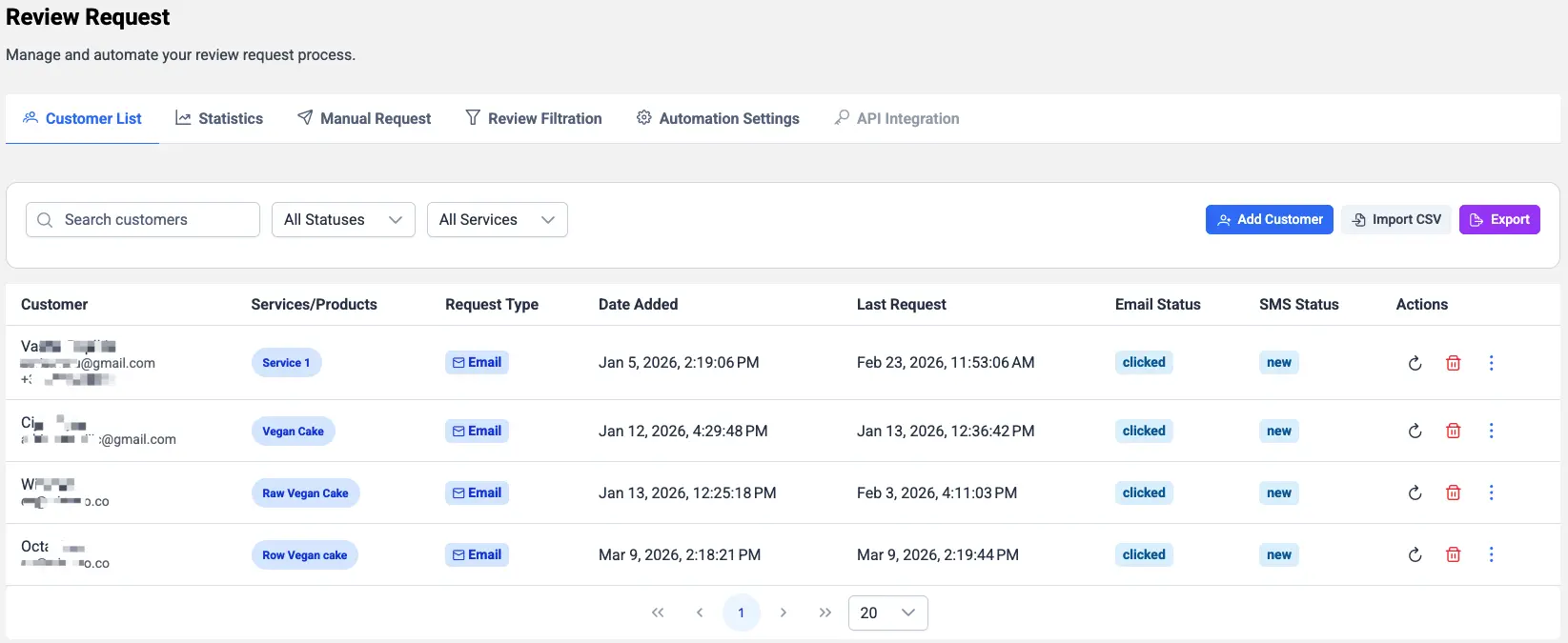
GLocal: Pasting the URL into every email takes time once you ask more than a few customers a week. GLocal, Wiremo's Google Business Profile management software, runs review request campaigns by email. You import customers from a CSV, schedule timed follow-ups that stop once the customer has posted, and track each request from sent to reviewed. Every feedback page keeps a "Review us on Google" button in view. See the Google review management tool.
Google's Rules for Asking
You may ask every customer for an honest review. Google's policy on fake engagement (checked September 28, 2026) lists what you may not do:
- No rewards. No payment, discounts, free goods, or free services in exchange for a review, or for changing or removing one.
- No cherry-picking. Don't discourage negative reviews, and don't ask only the customers you expect to be happy.
- No scripts. Don't ask customers to include specific content, such as a service or a staff member's name.
- No pressure. Don't require or pressure customers to post while they're on your premises, and don't set staff targets for a number of reviews.
Google's help page calls rewarded reviews fake engagement and says they are "strictly prohibited". Breaking these rules can get reviews removed and your profile restricted. The URL makes asking easier. It doesn't change what you're allowed to ask for.
Review Link Not Working? Common Fixes
- You can't find Get more reviews. You're probably signed in with the wrong account. Switch to the one that owns or manages the profile. If you still can't see it, build the URL from your Place ID (see above).
- It opens your profile, not the form. This can happen when the customer isn't signed in. It can also happen when the phone opens it in another app. The customer can still tap Write a review. Test on an iPhone and an Android phone before you send in bulk.
- Customers land on the wrong location. Each location has its own URL. Check the name and address on the form before you share it.
- A customer's review never appeared. The URL did its job; Google hasn't published the review or has removed it. Read why a Google review is not showing up for the usual causes.
- The QR code opens the wrong page. Make a new code from the current URL and scan it with two phones before you print a batch.
Once it works, put it wherever a happy customer already looks: the text after the job, the receipt, and a sign by the till.
Google Review Link Questions
Where do I find my Google review link?
It's in your Business Profile. On a computer, sign in with the account that manages the profile and search for your business. Select Read reviews, then Get more reviews, and select Copy. Some profiles show an Ask for reviews button that opens the same window. In the Google Maps app, open your Business Profile and tap Get more reviews.
What is a g.page review link?
It's the short URL Google gives you when you select Copy in the Get more reviews window. It usually looks like g.page/r/ followed by a code and /review. It opens your review form directly, so customers don't have to search for your business. Only people who manage the profile can copy it from Google.
Can I copy my review link on my phone?
Yes. Open the Google Maps app with the account that manages your profile and open your Business Profile. Tap Get more reviews or Ask for reviews to copy or share the URL. The QR code is different: Google only generates it in a computer browser, so download it on a computer or use a QR code generator.
Can a review link open on 5 stars?
No. It opens the form, and the customer chooses the rating. Asking for a particular rating also goes against Google's policy. It allows review requests only "without offering incentives to do so or attempting to influence the rating or the contents of the review." Ask every customer for an honest opinion instead.
Can I text the link to customers?
Yes. Paste it into a text message like any other URL. Keep the message to one sentence, send it soon after the visit or job, and ask for an honest review. Google's sharing window also has email, WhatsApp, and Facebook buttons. Don't offer a discount or gift in return, because Google treats that as fake engagement.
Does a review link help local SEO?
Not by itself, but the reviews it helps you collect can. Google's guide to local ranking says "more reviews and positive ratings can help your business's local ranking." Removing the search step makes it easier to collect reviews steadily instead of in bursts. Keep asking every customer, and reply to the reviews you get.