TL;DR: The WhatsApp Click to Chat URL for Google Business Profile
- The URL format:
https://wa.me/followed by your full phone number in international format, digits only. A US number +1 555 123 4567 becomeshttps://wa.me/15551234567. - Where to paste it: In your Business Profile, click Edit profile, open Contact, select Edit next to "Chat", choose WhatsApp and paste the URL.
- Only one option shows: The Chat field takes WhatsApp or a number that receives text messages. If you add both, Google shows customers the text message option only.
- Not in every region: Google says chat options are available in select regions, so the Chat row may be missing from your profile.
- The old Messaging feature is gone: Google switched off Business Profile chat on July 31, 2024. A guide that tells you to "turn on messaging" is out of date.
- Keep it out of the description: Google allows no links of any type in the business description.
What You'll Learn in This Guide
A chat link only helps if customers find the profile. The free Google Business Profile audit runs 32 checks across six areas plus a 29-rule Google policy scan, and grades your profile in about a minute.
What is a WhatsApp Click to Chat URL for Google Business?
A WhatsApp Click to Chat URL for Google Business is a direct link that lets potential customers start a conversation with your business on WhatsApp with just one tap. Instead of saving your number or searching for your profile, they simply click the link and jump straight into a chat. This is especially useful when you want to drive fast communication from your Google Business Profile listing.
Here's an example of a basic click-to-chat URL you can use:
https://wa.me/15551234567Or, if you want to pre-fill a message:
https://wa.me/15551234567?text=I'm%20interested%20in%20your%20servicesOnce the link is in your profile, customers can open a WhatsApp chat with you from Google Search and Maps.
Google removed the old Business Profile chat, the Messaging feature many guides still describe, on July 31, 2024. In its place, claimed and verified profiles in select regions get a Chat option in their contact info: you add a WhatsApp click to chat URL or a phone number that receives text messages, and customers contact you by WhatsApp or text. Google documents the field on its chat help page, and our history of Google Business Profile Messaging covers what the retirement removed.
By adding a WhatsApp link to your Google Business Profile, customers can reach you instantly for inquiries, support, or bookings. The steps below show you how to build the link, paste it into that Chat field and check that it opens a chat with your business.
Why You Should Add a WhatsApp Link to Your GMB Profile
As customer communication moves towards instant messaging, WhatsApp is one of the channels customers use to reach a business. WhatsApp reported more than two billion users in February 2020. With a chat link on your profile, customers can ask a question, book an appointment or check on an order without calling you.
By adding a WhatsApp link to your Google Business Profile (GMB), you give potential customers a direct way to reach you without the hassle of emails or phone calls. Instead of waiting for a response through traditional methods, customers can message your business instantly, leading to faster communication and better service. Encouraging happy customers to leave a review after a conversation on WhatsApp can also boost your online credibility and attract more potential clients.
The Importance of WhatsApp for Business Communication
In today's digital world, customers expect quick, direct, and personalized communication from businesses. WhatsApp lets them message a business from the same app they use to talk to friends and family.

Unlike traditional methods like email or phone calls, WhatsApp provides instant messaging with features that enhance customer interactions and business efficiency.
Why WhatsApp is Essential for Businesses
✔ Real-Time Conversations
An email can sit unread for hours. A WhatsApp message arrives as a notification on your phone, which helps you respond quickly and efficiently to customer inquiries.
✔ Convenience for Customers
Customers who already use WhatsApp can contact you from an app they know, without downloading anything new or filling out a form.
✔ Supports Multimedia Communication
Businesses can send text, images, videos, PDFs, and voice messages, allowing for better engagement and rich customer interactions.
✔ Automated Messaging & Quick Replies
Using WhatsApp Business tools, you can set up automated welcome messages, FAQs, and instant responses, reducing workload while maintaining excellent customer service.
✔ Secure & Trusted Communication – WhatsApp's end-to-end encryption ensures that conversations remain secure and private, making customers feel safe when engaging with your business.
By integrating WhatsApp with your Google Business Profile, you make it even easier for customers to reach you instantly, which can improve engagement, customer satisfaction and sales conversions.
How This Update Benefits Your Business
The integration of WhatsApp with Google Business Profile (GMB) is a game-changer for businesses looking to improve customer communication. This update allows you to add a direct WhatsApp link, making it easier for customers to connect with you instantly. Whether they have a question, need support, or want to make a purchase, WhatsApp messaging provides a seamless and efficient way to communicate.
Additionally, businesses can use WhatsApp and GMB together to send review requests after a positive interaction. A short follow-up message with your Google review link makes it easy for a happy customer to leave one. Google's ranking tips say more reviews and positive ratings can help your business's local ranking, so review requests are one way to improve local search rankings.
Key Benefits of Adding a WhatsApp Link to Your GMB Profile
1. Faster Customer Engagement
Customers today expect quick responses. Instead of waiting for an email reply or being put on hold in a phone call, they can send a WhatsApp message instantly. This helps businesses address inquiries in real-time, leading to higher engagement and better customer satisfaction.
2. Answers While Customers Decide
Customers can message you about pricing, product details or availability and get an answer while they're still deciding whether to buy.
3. Better Customer Support
WhatsApp makes it easier for businesses to provide personalized support. Instead of long email chains, customers can get quick solutions through text, voice messages, or images. Businesses can also use WhatsApp Business features like greeting messages, away messages and quick replies to manage common inquiries efficiently.
4. Increased Trust and Credibility
A WhatsApp option on your Google Business Profile shows customers they can reach you directly. A quick conversation before they visit or buy can make them more confident in choosing your business.
By integrating WhatsApp messaging with Google Business Profile, you can enhance your online presence, improve customer interactions, and drive more sales. In the next section, we'll walk you through the step-by-step process of adding a WhatsApp link to your GMB profile.
Step-by-Step Guide to Adding a WhatsApp Link to Google Business Profile
Now that you understand the benefits of integrating WhatsApp with your Google Business Profile (GMB), let's go through the step-by-step process to set it up. This guide will show you how to add WhatsApp to Google Business Profile quickly and easily.
By following these simple steps, you'll be able to add a WhatsApp Click-to-Chat link to your GMB profile, allowing customers to contact you directly with just one tap.

What You'll Need Before You Start:
✔ A WhatsApp Business account (recommended for best features)
✔ A verified Google Business Profile
✔ Your business phone number linked to WhatsApp
Follow the steps below to enable WhatsApp messaging for your business.
📱 5-Step WhatsApp Integration Process
Step 1
Set Up WhatsApp
Business Account
Step 2
Create Link
Click-to-Chat URL
Step 3
Add to GMB
Chat Field
Step 4
Test It
Chat & Alerts
Step 5
Promote
Share Features
Step 1: Set Up Your WhatsApp Business Account
Before adding a WhatsApp link to your Google Business Profile (GMB), you need to set up a WhatsApp Business account. This ensures you get access to business-specific features like automated messages, quick replies, and business profile details.
1. Download the WhatsApp Business App
The WhatsApp Business app is designed for companies to communicate with customers effectively. If you haven't already installed it, follow these steps:
✔ For Android: Download from the Google Play Store
✔ For iPhone: Download from the Apple App Store
2. Register Your Business Phone Number
- Open the WhatsApp Business app and agree to the terms and conditions.
- Enter your business phone number (this should be the number you want customers to contact you on).
- Verify the number using the OTP (one-time password) sent via SMS.
3. Set Up Your Business Profile
Once your phone number is verified, complete your WhatsApp Business profile:
✔ Business Name: Use the official name of your business, the same one your Google Business Profile shows.
✔ Category: Choose the relevant industry (e.g., Retail, Restaurant, Professional Services).
✔ Business Description: Write a short, clear description of your business and services.
✔ Location & Contact Info: Add your business address, email, and website link.
✔ Business Hours: Set your working hours so customers know when to contact you.
✔ Profile Picture: Upload a high-quality business logo or storefront image.
4. Enable Business Messaging Features (Optional but Recommended)
WhatsApp Business provides tools to improve communication efficiency:
✔ Quick Replies – Set up pre-written responses for FAQs.
✔ Away Messages – Automatically reply when you're unavailable.
✔ Greeting Messages – Send an automatic welcome message to new customers.
Why This Step Matters
A complete WhatsApp Business profile shows customers your hours, address and website, so they can check that they've reached the right business.
Step 2: Create a WhatsApp Click-to-Chat Link
Now that your WhatsApp Business account is set up, the next step is to generate a WhatsApp Click-to-Chat link. This WhatsApp URL for Google Business Profile allows customers to message your business instantly without saving your phone number.
1. How to Generate Your Custom WhatsApp Link
WhatsApp provides a simple link format that anyone can use:
🔗 Basic format:
https://wa.me/<YourPhoneNumber>Example:
If your business phone number is +1 234 567 8900, your WhatsApp link will be:
https://wa.me/12345678900🚨 Important:
- Remove any spaces, dashes, or special characters from your phone number.
- Always include the country code (e.g., 1 for the USA, 44 for the UK, 91 for India).
- Leave out the + sign and any leading 00. WhatsApp's own example: use
https://wa.me/15551234567, nothttps://wa.me/+001-(555)1234567. In countries like the UK and India, also drop the 0 you dial before a number inside the country. - UK mobile 07700 900123 becomes
https://wa.me/447700900123. Indian mobile +91 98765 43210 becomeshttps://wa.me/919876543210.
2. Adding a Pre-Filled Message (Optional, but Recommended)
You can make it even easier for customers by including a pre-filled message. When they click your WhatsApp click to chat URL for Google Business, the message box will be automatically filled, saving them time.
🔗 Format with pre-filled message:
https://wa.me/<YourPhoneNumber>?text=<YourMessage>Example:
https://wa.me/12345678900?text=Hello!%20I'd%20like%20to%20know%20more.How it works:
- %20 represents a space.
- You can customize the text to fit your business needs.
✔ For a restaurant:
https://wa.me/12345678900?text=Hi!%20I'd%20like%20to%20book%20a%20table%20for%202.✔ For a service provider:
https://wa.me/12345678900?text=Hello!%20Can%20you%20tell%20me%20more%20about%20your%20services?3. Testing Your WhatsApp Link
Before adding the link to your Google Business Profile, test it to ensure it works correctly:
✅ Copy and paste your WhatsApp link into a browser.
✅ Press Enter and check if it opens a chat with your business number.
✅ If you added a pre-filled message, see if it appears in the chat box.
Step 3: Add Your WhatsApp Link to Your Google Business Profile
Now that you have created your WhatsApp Click-to-Chat link, it's time to add it to your Google Business Profile (GMB) so customers can easily reach you.
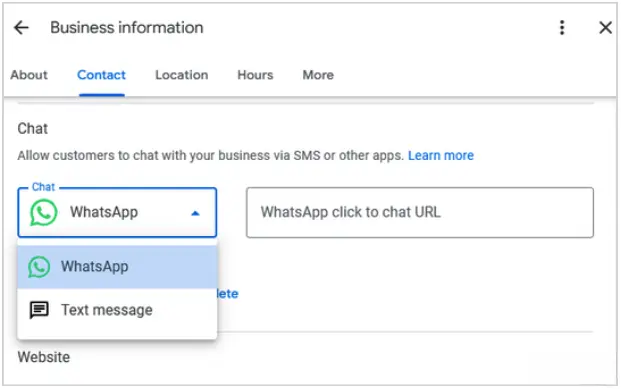
Google gives WhatsApp its own place in your profile: the Chat row in the Contact section, shown in the screenshot above. The empty box in that screenshot reads "WhatsApp click to chat URL". That is the https://wa.me/ link you built in Step 2.
1. Sign In and Find Your Business Profile
1️⃣ Sign in to the Google account linked to your Business Profile.
2️⃣ Search Google for your business name and city, or for "my business". On Google Maps, search for your business name and city. In the Google Maps app, tap Business at the bottom right.
3️⃣ If you run many locations, use Business Profile Manager, the tool Google offers for managing profiles in bulk.
2. Paste Your WhatsApp Link Into the Chat Field
1️⃣ Click Edit profile, then open Contact.
2️⃣ Next to "Chat", select Edit.
3️⃣ Open the "Chat" drop-down and choose WhatsApp.
4️⃣ Paste your https://wa.me/ link into the URL field.
5️⃣ Click Save.
Google reviews profile edits before it puts them live, so the chat option may not appear on Search and Maps straight away. If Google rejects the URL, check the number for a + sign, spaces or dashes, then try the plain https://wa.me/<YourPhoneNumber> version without a pre-filled message. If you run several locations on one WhatsApp number, Google lets different Business Profiles use the same WhatsApp link.
3. If Your Profile Has No Chat Row
Google says chat options are available in select regions and might not be available for your Business Profile. The option is also limited to claimed and verified profiles, so finish verification first. If your profile is verified and the row still isn't there, put the wa.me link on your website's contact page and on printed QR codes (Step 5) and check the Contact section again later.
4. Where the WhatsApp Link Doesn't Belong
- The business description: Google's guidelines for descriptions say "No links of any type are allowed." Mention that you answer on WhatsApp if you like, without the link.
- The website field: Google asks for a website that represents your business location. A wa.me link opens a chat, so keep your real website in that field and let the Chat row carry WhatsApp.
- Social profiles: This section accepts Facebook, Instagram, LinkedIn, Pinterest, TikTok, X and YouTube links. WhatsApp isn't on the list.
- The text of a Google post: A wa.me link contains your phone number, and Google may remove posts with unverified contact information, phone numbers included. Announce WhatsApp in a post and send readers to the chat option on your profile (Step 5).
5. Why This Step Matters
✔ Visible where people look for contact details: Google adds the WhatsApp option to your profile's contact info.
✔ Easier Communication: Users can reach out with a single tap, leading to better engagement.
✔ Inside Google's rules: The Chat field is the place Google built for this link, so you avoid putting it where the guidelines forbid links.
Step 4: Test the Chat Option and Set Up Notifications
Older guides, including an earlier version of this one, tell you to click Messages and "Turn On Messaging". That switch is gone: since July 31, 2024 you can't chat with customers inside your Business Profile. With the Chat field, every conversation happens in WhatsApp (or in your SMS app if you choose text messages), so the rest of the setup happens on your phone.
1. WhatsApp or Text Message: Pick One
The Chat drop-down offers two choices. WhatsApp takes your click to chat URL. Text message takes a phone number that can receive texts. You can fill in both, but Google then shows customers the text message option only. Pick the channel your team answers fastest and leave the other one empty.
2. Test the Chat Option Like a Customer
1️⃣ Check that Google has approved your edit.
2️⃣ On a phone, search for your business on Google Maps and open your profile.
3️⃣ Tap the WhatsApp chat option in your contact details.
4️⃣ Confirm that WhatsApp opens a chat with your business number, with your pre-filled message if you added one.
If WhatsApp shows an error instead of a chat, go back to Step 2 and check the number for a + sign, spaces or a missing country code.
3. Setting Up Notifications for Faster Replies
The chats don't run through your Business Profile, so there's nothing to switch on there. Turn on alerts where the chats arrive:
✔ WhatsApp Business app:
- Allow notifications for the WhatsApp Business app in your phone's settings.
- If you answer from a computer, link WhatsApp Web or the desktop app to the same account so new chats reach you there too.
✔ Text messages:
- If you picked the text message option, use a number on a phone someone checks during opening hours.
- Turn on SMS notifications on that phone so you don't miss new messages.
4. Best Practices for Managing Chats From Your Profile
✔ Respond Quickly – Answer new chats during opening hours, and set an away message for when you're closed.
✔ Set Up Auto Replies – Use a greeting message to acknowledge customer inquiries instantly.
✔ Keep the Number Current – If your WhatsApp number changes, update the Chat field the same day so the option doesn't open a chat with a dead number.
Why This Step Matters
✅ Improves customer experience – Fast responses keep potential customers engaged.
✅ Catches mistakes early – A test from your own phone shows a broken link before a customer finds it.
Step 5: Promote Your WhatsApp and Text Messaging Features
Now that your WhatsApp link is live on your Google Business Profile, it's time to let your customers know! Promotion is key to driving engagement and ensuring people use these new contact options.
1. Announce the Update with Google Posts
Google Posts allows you to share updates and promotions directly on your GMB profile. Use this feature to inform customers about your new WhatsApp chat option.
✔ Choose the Update post type.
✔ Write a short announcement like: "You can now chat with us on WhatsApp. Tap the WhatsApp option on our Google profile to start a conversation."
✔ Leave the phone number and the wa.me link out of the post text: Google may remove posts with unverified contact information, including phone numbers.
✔ Add an eye-catching image or WhatsApp logo to grab attention.
✔ Select Post to publish it.
2. Promote on Social Media and Your Website
Use your social media platforms to announce your new WhatsApp and messaging features.
- Email Signature & Newsletters:
✔ Add "Chat with us on WhatsApp" with your WhatsApp link in your email footer.
✔ Announce the new feature in your next customer newsletter.
3. Encourage Customers to Use WhatsApp for Support
To increase adoption, start directing customers to WhatsApp instead of email or phone calls:
✔ Train your customer service team to redirect inquiries to WhatsApp.
✔ Offer exclusive deals or faster responses to customers who contact you via WhatsApp.
✔ Print a QR code of your wa.me link on receipts, packaging, or a counter card. Put it next to a Google review QR code so the same card also asks happy customers for a review.
Why This Step Matters
✅ More customer engagement – The more people know about it, the more they'll use it.
✅ Stronger brand presence – Promoting WhatsApp messaging helps build trust and convenience.
With your WhatsApp chat link set up and promoted, let's move to the best practices to ensure long-term success!
Best Practices for Success
Now that your WhatsApp link is live on your Google Business Profile, follow these best practices to ensure maximum customer engagement and efficiency. Implementing these strategies will help you respond faster, manage inquiries better, and improve customer satisfaction.

1. Respond Quickly to Messages
A customer who messages you is waiting for an answer, so reply as soon as you can.
✔ Enable notifications in the WhatsApp Business app on every device you answer from.
✔ Set a reply-time target for opening hours and check that your team meets it.
✔ If you're unavailable, use auto-reply messages to let customers know when you'll respond.
- Example Auto-Reply: "Hi! Thanks for reaching out. We'll get back to you shortly. In the meantime, check out our website here: [Your Website Link]"
2. Set Up Automated Quick Replies
Use WhatsApp Business tools to create predefined responses for frequently asked questions, saving time while maintaining customer engagement.
- Examples of Quick Replies:
✅ Pricing Inquiry: "Our pricing starts at $XX. Let us know if you need more details!"
✅ Business Hours: "We're open from Monday to Friday, 9 AM – 6 PM. Let us know how we can help!"
✅ Service Information: "We offer [Your Service]. Click here to learn more: [Your Website Link]"
3. Monitor and Optimize Your Customer Interactions
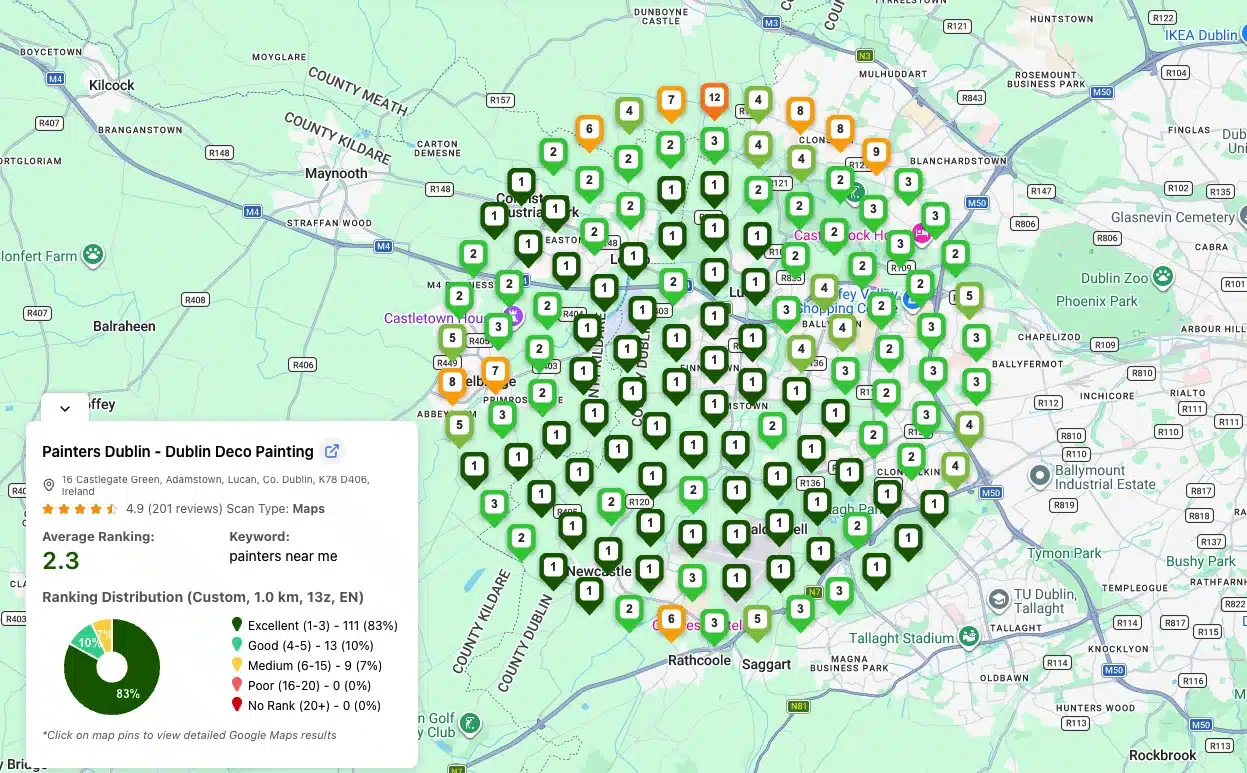
Track customer engagement and response times to ensure your WhatsApp strategy is effective. You can also monitor your Google Maps rankings to see whether your local visibility changes over the same period.
✔ Analyze message trends – Which FAQs come up the most?
✔ Improve response times – Are you responding fast enough?
✔ Get customer feedback – Ask if WhatsApp support is helpful.
- Pro Tip: Use WhatsApp Business API if you receive high message volumes and need advanced automation or chatbot support.
- How to Use Quick Replies on WhatsApp Business:
1️⃣ Save your common answers as quick replies in the WhatsApp Business app's business tools.
2️⃣ In a chat, type "/" to see all your quick replies.
3️⃣ Pick one. It appears in the message box, ready to edit and send.
Why These Best Practices Matter
✅ Better Customer Experience – Fast, helpful responses keep customers happy.
✅ More Efficient Communication – Automated tools save time and improve response accuracy.
By following these best practices, your business can get the most from the WhatsApp option on your Google Business Profile.
Conclusion
Integrating WhatsApp with your Google Business Profile (GMB) lets customers chat with you straight from your listing. That gives them a faster, more convenient way to ask questions, schedule appointments, or request details about your products and services.
A direct chat channel can improve customer satisfaction and trust. With quick replies and automated greeting and away messages, you can handle inquiries efficiently, even on busy days.
Put the link in the Chat field, test it from your own phone, and update it whenever your number changes.
While you are in Edit profile, check the rest of it. The free Google Business Profile audit scores your name, categories, services, hours, attributes, reviews, photos and posts in 32 checks, and flags the Google policy problems that get edits rejected or profiles suspended. Sign in with Google (the audit only reads the profile) and get a graded report in about a minute.
FAQs: Adding a WhatsApp Link to Your Google Business Profile
Here are the most frequently asked questions about integrating WhatsApp with Google Business Profile (GMB) to help you get started quickly.
1. Why should I add a WhatsApp link to my Google Business Profile?
A WhatsApp link in the Chat field lets customers start a WhatsApp conversation with you from your Business Profile on Google Search and Maps. They can ask a question or make a booking without calling or emailing, and you answer from the WhatsApp Business app.
2. Is WhatsApp Business required, or can I use a personal WhatsApp account?
It is highly recommended to use WhatsApp Business instead of a personal account. WhatsApp Business offers professional features like quick replies, automated messages, and business profile details, making it easier to manage customer inquiries efficiently.
3. How do I create a WhatsApp Click-to-Chat link?
You can generate a Click-to-Chat link using this format:
🔗 Basic format:
https://wa.me/<YourPhoneNumber>Example: If your number is +1 234 567 8900, your link will be:
https://wa.me/12345678900For a pre-filled message, use:
https://wa.me/12345678900?text=Hello!%20I'd%20like%20to%20know%20more.4. Where should I add my WhatsApp link on Google Business Profile?
Put it in the Chat field: Edit profile, then Contact, then Edit next to "Chat". Choose WhatsApp and paste your wa.me URL. Keep it out of these places:
- The business description, where Google allows no links of any type.
- The website field, where Google asks for a website that represents your business.
- The text of Google Posts: announce WhatsApp there, but leave out the number, which Google may treat as unverified contact information.
5. Can I enable Google Business Messaging and WhatsApp at the same time?
No. Google ended Business Profile chat, often called Google Business Messaging, on July 31, 2024, so there is nothing left to switch on. The Chat field that replaced it takes WhatsApp or a text message number. You can save both, but Google then shows customers the text message option only.
6. How can I promote my WhatsApp link to customers?
To increase awareness and engagement, promote your WhatsApp link on:
- Your Google Business Profile (the Chat field, plus a Post announcing it)
- Social media platforms (Facebook, Instagram, LinkedIn)
- Your website (via chat buttons or pop-ups)
- Email signatures and newsletters
- QR codes on receipts, packaging, or in-store signage
7. How do I ensure fast responses to WhatsApp messages?
✔ Enable notifications on your phone and desktop.
✔ Use quick replies for common customer inquiries.
✔ Set up an auto-reply message to acknowledge messages immediately.
✔ Assign a team member to handle WhatsApp inquiries efficiently.
8. Can I track performance and monitor customer interactions on WhatsApp?
On the Google side, the chat help page points you to your Business Profile performance report for chat metrics.
The WhatsApp Business app shows basic message statistics:
- Messages sent
- Messages delivered
- Messages read
- Messages received
For advanced tracking and automation, businesses can use the WhatsApp Business API.
9. Is adding WhatsApp to Google Business Profile free?
Yes, adding a WhatsApp link to your Google Business Profile is completely free. The WhatsApp Business API, which automation and chatbot tools use, is a paid service: Meta charges for template messages it delivers (Meta's pricing page lists the rates and the free cases), and third-party providers may add their own fees.
10. Can I remove or update my WhatsApp link on GMB later?
Yes. You can edit or remove your Google My Business WhatsApp link at any time by:
1️⃣ Going to your Business Profile and clicking Edit profile.
2️⃣ Opening Contact and selecting Edit next to "Chat".
3️⃣ Changing or removing the WhatsApp URL and clicking Save.