Hi! In this short tutorial, we will explain you how to submit a ticket in Wiremo Dashboard.
Submit a ticket
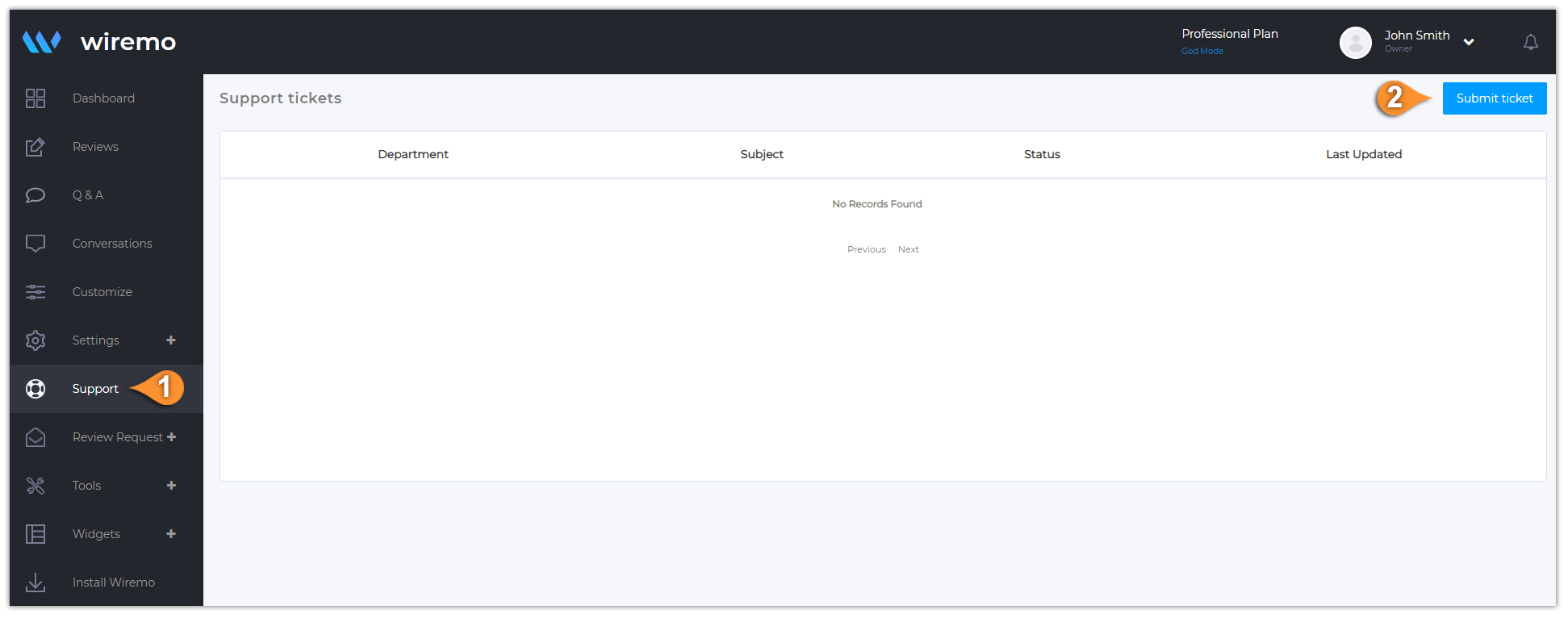
To Submit a ticket, please login to Wiremo Dashboard, go to “Support” (pin 1) and then press the “Submit ticket” button (pin 2).
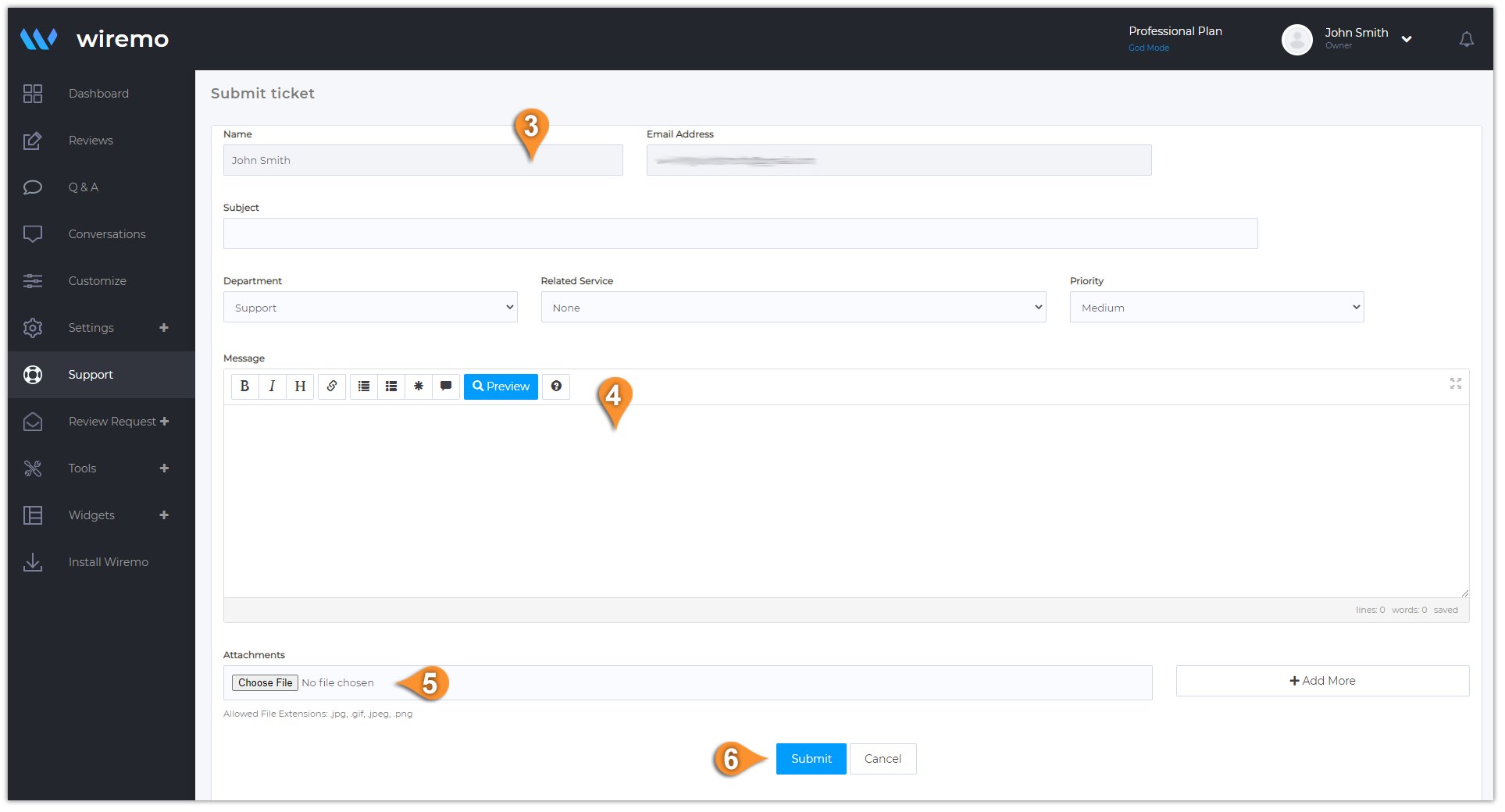
On the next page, please add all the required information (pin 3): your “Name”, “Email Address”, “Subject”, “Urgency” type, “Department” and “Related Service”. Then type your message (pin 4). You can also attach some files if it's needed (pin 5). Once you're done, just click on the “Submit” button (pin 6).
Hi! In this short tutorial, we will explain you how to change your password in Wiremo Dashboard.
Change account password
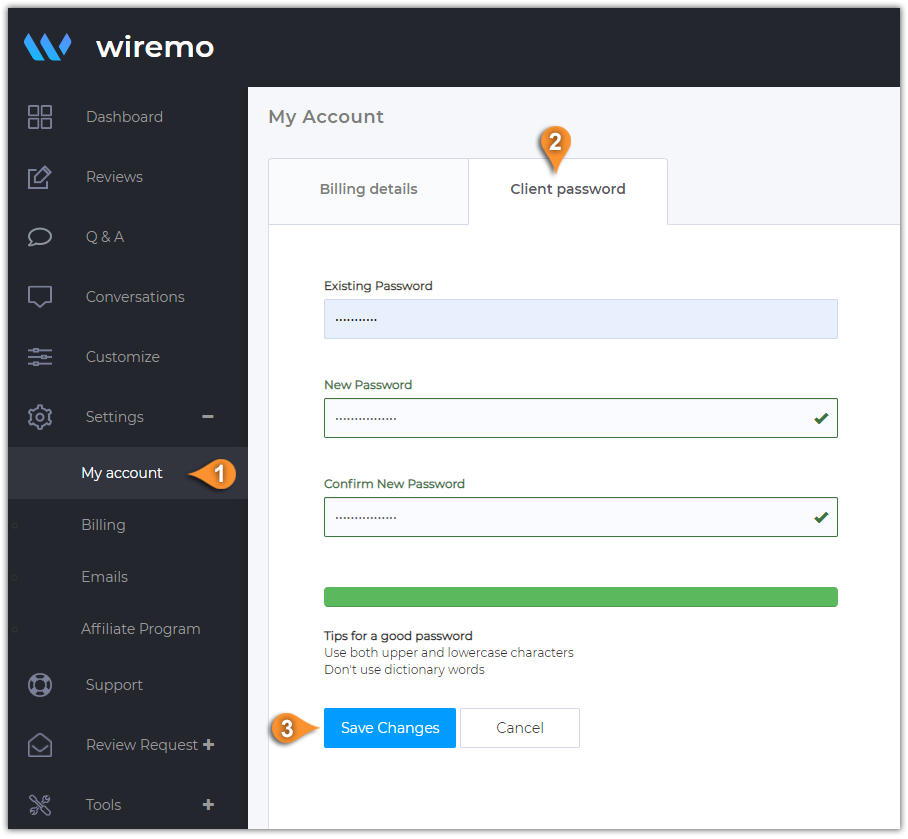
To change your account password, please login to Wiremo Dashboard, go to “Settings” and then click on “My account” (pin 1). Now, press on the "Client password" tab (pin 2). In this tab, you can change your password. Type the existing, then the new one and confirm it. Once you're done press “Save Changes” button (pin 3)!
Hi! In this short tutorial, we will explain you how to update your billing details in Wiremo Dashboard.
Update billing details
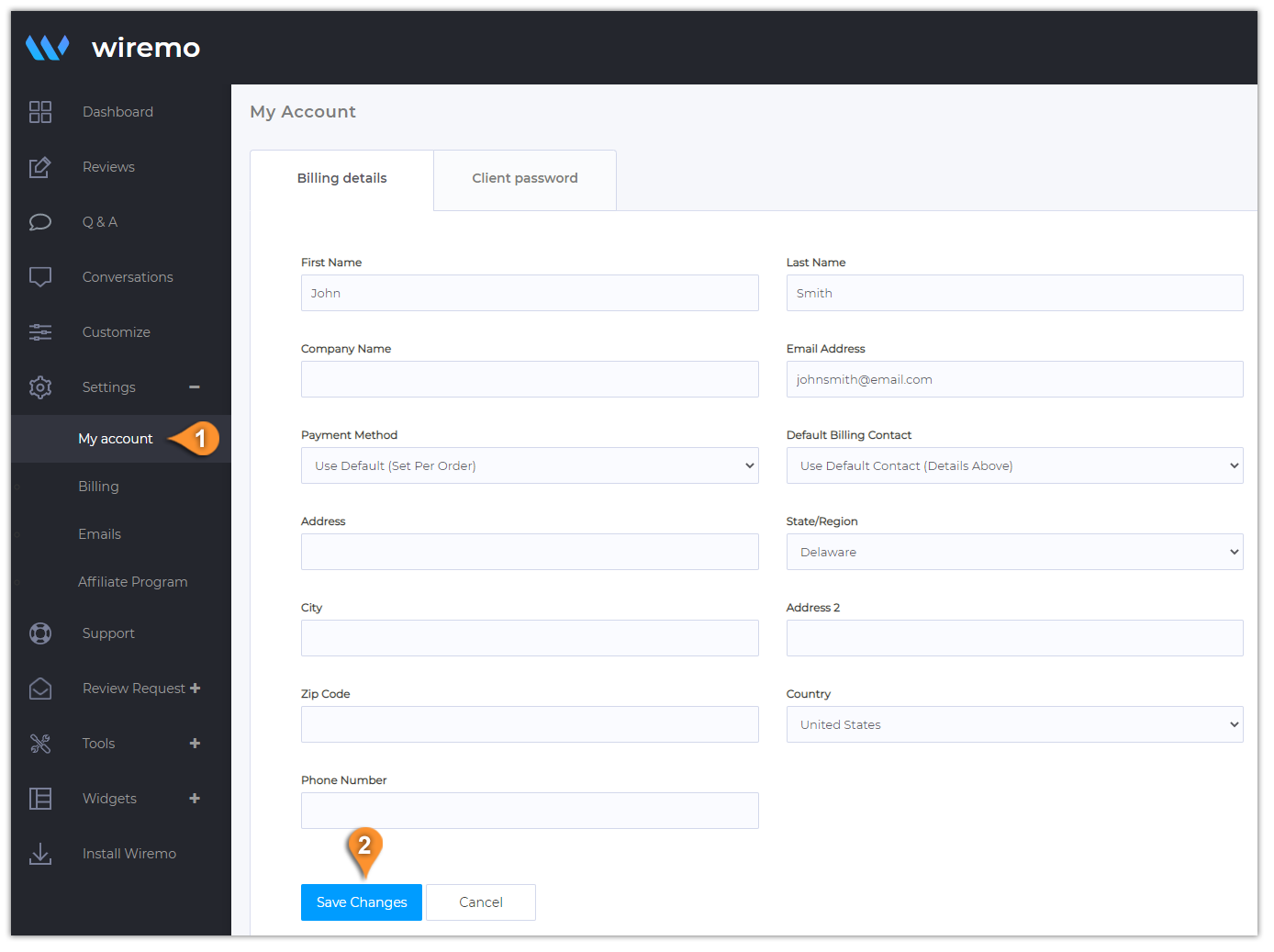
To update your billing details, please login to Wiremo Dashboard, go to “Settings” and then click on “My account” (pin 1). Now, in the "Billing details" tab you can fill out your billing details!
If you also want to change your account password, you can do it from the same section. Just go to the “Client Password” tab, enter your current password, then your new one, and click “Save Changes.”
Once you are done with updating your billing details, press the “Save Changes” button (pin 2).
Hi! In this short tutorial, we will explain you how to pay your invoices in Wiremo Dashboard.
Note:Please make sure you have updated your billing details before paying the invoice!
How to pay an invoice
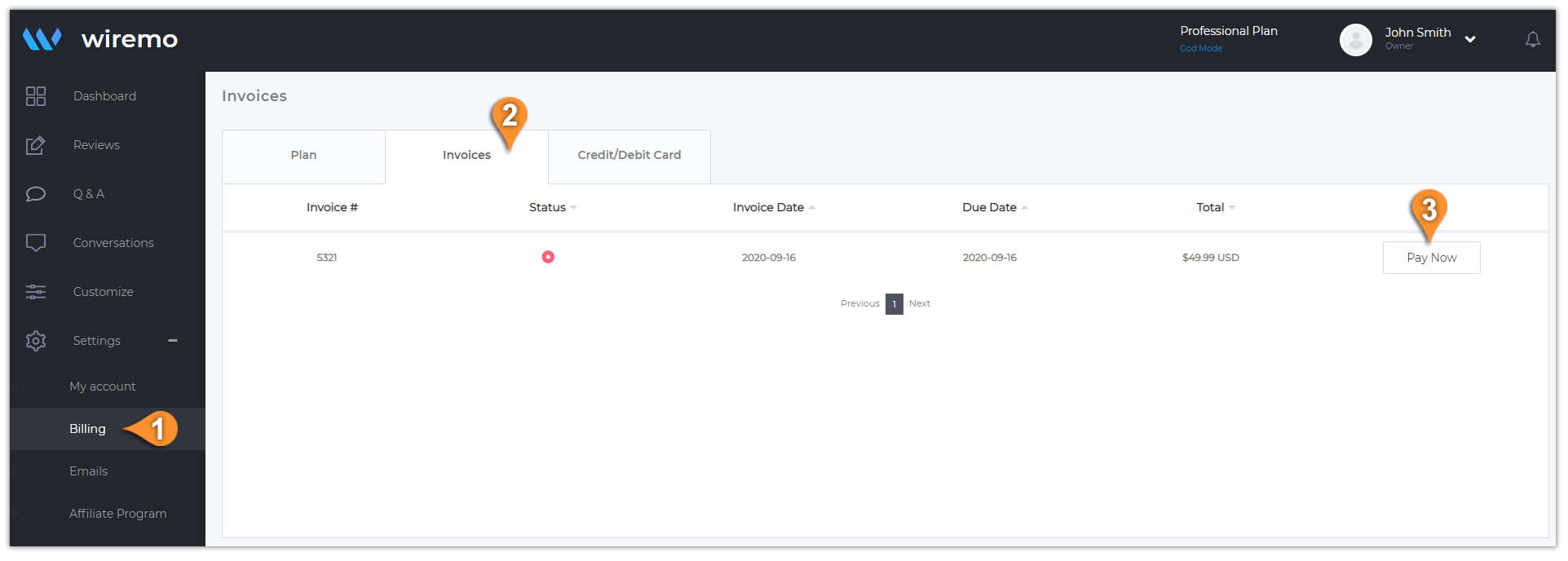
To pay an invoice, please login to Wiremo Dashboard, go to “Settings” and then click on “Billing” (pin 1). Now click on “Invoices” tab (pin 2). Find your unpaid invoice and press on the "Pay Now" button (pin 3).
If you already have a card saved to your dashboard you can use it, or you can select to use a new card and submit the payment.
To upgrade your plan, please login to Wiremo Dashboard, go to “Settings” and then click on “Billing” (pin 1). Now click on the “Upgrade” button (pin 2)
If you have a promo code related to one of our special offers please paste it in the input box "Promotional Code" and then press the "Validate Code" button. Once it's done just press the "Click to Continue" button.
Note: The updated price you will see once you'll press the "Click to Continue" button.
Hi! In this short tutorial, we will explain you how to accept, reply, decline or mark as pending your customer reviews.
Moderate in the reviews tab
To moderate your reviews you need to login to your Dashboard and click on the “Reviews” tab (pin 1) in the main menu. You can accept, decline, reply, open a conversation ("Reply as ticket"), migrate reviews, delete or change the status without opening the review. Now there are 3 ways to moderate reviews:
You can select one or more reviews (pin 3) or you can select all of them (pin 2). Once the reviews are marked as selected just choose the desired action in the opened blue menu (pin 4).
You can use the setting gear for every review.
Also, you can use the drop-down menu with the options for all your reviews (pin 5).
Moderate using the settings gear
As you can see from the screenshot below you have a lot of settings for every review:
Mark as pending - Only you as admin can see the review
Decline
Reply - Write feedback to the review you've got.
Mark as Verified
Mark as Unverified
Reply as ticket - open a private conversation with your customer
Deleted reviews will be marked with a black circle status (pin a).
Deleted reviews can be restored within 48 hours. This option is available only for our Professional and Custom Plan users.
If you want to find or hide your recentely deleted reviews just use the Status Filter (pin b) and tick the Deleted Status (pin c). Then press the "Apply" button.
Moderate all reviews
The option to moderate all reviews also includes all actions related to a review, except open a conversation. But also here is an important option to export all your customer reviews to a CSV file. You can find out more information in our dedicated tutorial - How to export customer reviews.
Moderate in the review page
For more options, you need to click on your review to open it. Once you're in, you will have 3 main moderation zones. In the top menu (pin 7) you can approve a review if it's pending or vice versa, decline, ask to update, or delete the current review. The second menu (pin 6) is placed under the review. Here you can reply to the review and edit it if you found some mistakes.
Also an important list of options you can find in the sidebar. Here you can see your customers' info:
First and Last Name
The review source
Email address
GEO source
IP Address
Link to the customer review page source
Identifier
Verified buyer - you can easily mark the current reviewer as a verified customer.
Review sentiment - Using AI you can see what the text is expressing, is it neutral, positive, or negative.
Review Keywords - Using AI find and show the most used words from your latest customer reviews related to the current one.
It sometimes happens that some clients make mistakes when they write a review. This kind of mistake can occur while typing the name, email address, or even reviewing a different product from the one that was bought. You can easily fix all these mistakes without contacting the client, directly from the Wiremo Dashboard. You can correct your client name, email address, link, and product ID. (pin 8). The edit and copy options will appear on hover.
Hi! In this short tutorial, we will explain you how to mark a review with the "Verified buyer" label.
Important:Please note that you can mark as verified only those reviews that were left by people who confirmed their email address. Anonymous reviews or reviews with unverified email cannot be marked as verified.
Video tutorial
For an easier way to find out how to set the "Verified buyer" label, you can watch the following video tutorial or follow the steps below it.
How to set the "Verified buyer" label
So you've got a new review. Once you open it in the dashboard, you can see your review details. First of all, you may note that the email status is marked as "Verified" (pin 1). It means that your customer confirmed the email address. Now to mark this review to as verified, at the lower right corner just enable the "Verified buyer" option (pin 2). After that refresh the page where your review is being displayed and check. It should be marked as verified.
How to ask a customer to confirm email address
If you enabled the "Verify review email" option in your dashboard, then every customer who leaves a review will instantly get a request to confirm the email address. As you already know, to mark a review with the "Verified buyer" label, the reviewer's email should be confirmed. In the image below you can see an example of a review with "Unverified" status. To ask again your customer to confirm email address just press on the "Unverified" link (pin 3).
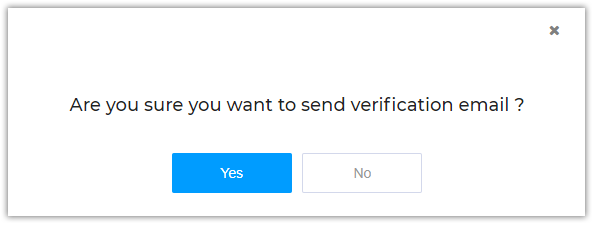
In the opened pop-up window just confirm that you want to send a verification email.
Thank you for choosing Wiremo.
By continuing to use this site you consent to the use of cookies in accordance with our Cookies Policy.