Google Business Profile video verification is one continuous, unedited recording you make on your phone through your Business Profile. Google's video verification help page says the video must show three things: where the business is, that it exists there, and that you manage it. It must run at least 30 seconds, and Google publishes no maximum length. Start outside at the address, show the permanent sign, then show something only an employee can access.
How to Record and Upload Your Google Business Profile Video Verification
You record and upload the video on a mobile device, through your Business Profile, signed in to the Google Account that manages the profile. Google doesn't allow pre-recorded videos, and you can't record offline and upload later. The steps below follow Google's help page.
- Open your Business Profile on your phone. Search Google for your business name, or open the profile in the Google Maps app, while signed in to the account that manages it.
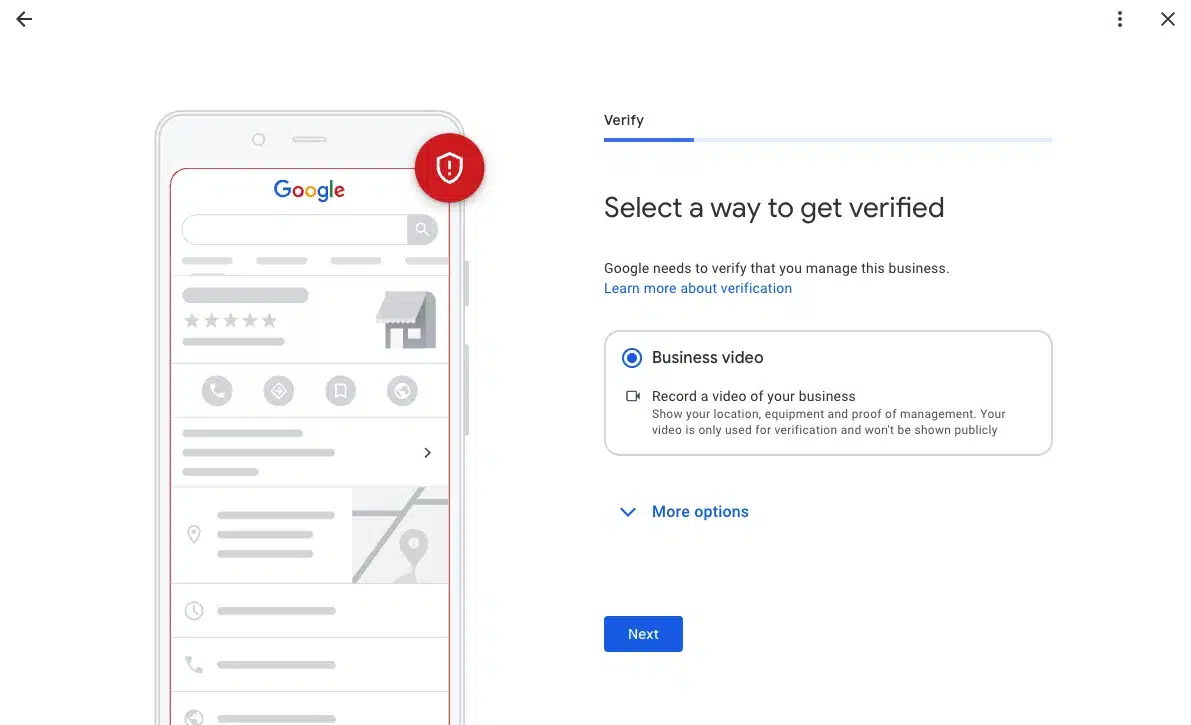
- Tap "Get verified". Google may first ask you to enter your phone number and tap "Next".
- Tap "Business video", then "Next". Google decides which methods you see. If video is one of them, Google recommends it.
- Read the video requirements. Allow access to your location, camera and microphone if your phone asks.
- Stand outside your business before you tap "Next", then "Start recording". Once you start, keep filming until you finish: Google asks for a complete recording "with no breaks".
- Walk your route in one continuous take. Follow the 9 filming steps below, then tap the stop button. The video must be at least 30 seconds long.
- Review the footage, then tap "Upload video". Watch it back before you submit. If anything is unclear or missing, tap "Try again" to re-record.
- If the upload fails, upload it again. Google says some videos fail to upload on the first try. A failed upload is not a rejection.
Timing: Google sets a minimum of 30 seconds and publishes no maximum. After you upload, the review can take up to 5 business days. You then learn that the business is verified, or Google tells you why the video wasn't accepted.
Verification is only the first step. Once the profile is live, the free Google Business Profile audit runs 32 checks across six areas, verification status included, plus a 29-rule Google policy scan, and grades the profile in about a minute.
Why Google Recommends Video Verification
Google says the video "helps us confirm that you manage or represent the business." You don't choose the method. Google's Verify your business on Google page says "Verification methods are automatically determined by Google and can't be changed," and that the options depend on your business type, public info, region or business hours. The same page says that if your business is eligible for video verification, Google recommends that option.
Video is one of several methods. Google may offer you a phone or text code, an email, a live video call or a postcard instead of video, or next to it. If Google offers you a method other than video, our Google Business Profile verification guide compares every method, timeline and status.
- Up to 5 business days: how long Google's review of an uploaded video can take
- 30 seconds minimum: Google sets no other length rule
- No edits or breaks: one continuous take, start to finish
What Google Actually Needs to See in Your Video
Google's help page lists three things your video must show. Plan every shot around one of them.
Proof of location
Show where your business is in the real world. Google asks for street signs, building numbers, nearby businesses or familiar places around your business, so it can confirm the business is at the location shown on Google Maps. Footage of an unmarked street or empty land can't make that link, and Google tells service area businesses to avoid it.
Proof of existence
Show that the business operates at this location. For storefronts, film your storefront, showroom or signage. Google wants your business name "clearly printed on a permanent fixture, like a signboard, wall, or window", and the name in the video must match the name on your Business Profile. A paper sign taped to a window or a temporary banner is not a permanent fixture. For service area businesses, Google asks for the tools, equipment or products you use, your workspace, business cards or branded apparel.
Proof of management
Show that you manage or represent the business. Google's storefront examples are opening a cash register, kitchen or storage room, or using a point-of-sale system. For service area businesses, Google suggests performing a service, unlocking a van with your business branding, or showing a business permit, invoice or utility bill that matches the name on your profile. A stranger could film the sign from the street; only staff can open the register.
| Business Type | Proof of Location | Proof of Existence | Proof of Management |
|---|---|---|---|
| Storefront | Street signs, building numbers, nearby businesses or familiar places | Name on a permanent fixture, matching your Business Profile name | Open the cash register, kitchen or storage room, or use the point-of-sale system |
| Hybrid | Same as storefront | Same as storefront (Google gives hybrids the storefront requirements) | Same as storefront |
| Service Area | Street signs or landmarks at your business address (your neighbourhood if you work from home) | Tools, equipment, products, workspace, business cards, branded apparel | Perform a service, unlock a branded van, or show a permit, invoice or utility bill in the profile's name |
Before You Hit Record: The Pre-Verification Checklist
Google's rejection examples describe something missing from the video, such as the business name or the nearby area, not poor picture quality. Most of those gaps can be closed before you press record:
- Confirm the name on your Business Profile matches the name on your sign. Google's guidelines ask you to represent the business "as it's consistently represented and recognized in the real world across signage, stationery, and other branding."
- Confirm any document you plan to show carries the same business name as your profile.
- Make sure the Google account on your phone is the account that manages the Business Profile.
- Free up enough storage on your phone for the recording.
- Test your camera and lighting before starting. In daylight, signs and street names are easier to read.
- Keep a business permit, invoice or utility bill within reach, and cover any bank account, tax or ID numbers on it.
- Film when nobody else is in shot. Google doesn't allow other people's faces in the video.
- Know where old videos live. Google lets you delete verification videos at any time: on your Business Profile, tap More > Business Profile settings > Advanced settings, then "Delete videos" under "Video uploads". If you don't, Google deletes them later.
- Plan your physical route in advance. Google tells you to plan the video before you record, and the recording must have no breaks. If you stop early, tap "Try again" and record the whole route from the start.
Critical: You cannot record the video offline and upload it later. Google requires you to capture the footage live, on a mobile device, through your Business Profile. Pre-recorded videos aren't allowed.
Step-by-Step: What to Show in Your GBP Verification Video
Walk through these steps in sequence during a single continuous recording. Do not stop the recording between steps. Google lists what to show; the order below is our suggestion.
- [All business types] Show the Area Around Your Business. Begin outside before reaching your entrance. Capture street signs, intersections, building numbers and nearby businesses, and hold each one long enough to read. If you run a service area business from home, Google lets you record landmarks and signs in your immediate neighbourhood.
- [Storefront & Hybrid] Show Your Permanent Signage. Approach your entrance and hold the camera steady on your sign. The business name must be clearly legible and match your Business Profile name. No temporary signs, no printed paper. If your office is inside a shared building, film the street and the building first, then your name where it is permanently fixed, such as a sign on your wall or window. Google defines a storefront as a location with permanent on-site signage; if you don't serve customers at your address, set the profile up as a service area business instead.
- [All business types] Show Your Workspace or Where Work Happens. Walk inside and record the space where business operates. Office: desks, computers, working environment. Retail: sales floor, product displays. Restaurant: kitchen or dining area. Service area business: your home office, garage, or storage area where you manage bookings and equipment.
- [All business types] Show Tools, Equipment, or Inventory. Include physical proof of what your business does. Restaurants show kitchen equipment. Barbershops show chairs and stations. Contractors show branded tools. Professional services show computers or industry equipment. For service area businesses, Google lists tools, equipment and products as proof the business exists, in place of the signage a storefront shows.
- [All business types] Show Branded Assets. Point the camera at anything bearing your business name or logo: branded apparel, company vehicles, business cards, printed materials, or branded packaging. For service area businesses, these link your home address to a real, operating business.
- [If you have a branded vehicle] Open Your Vehicle or Equipment. Unlock the vehicle and show the interior: tools, branded materials, or work equipment. Google names unlocking a van with your business branding as proof of management for service area businesses. Without a vehicle, open a secure storage area or piece of equipment only an authorised manager can reach.
- [All business types] Show That You Can Access the Location. Demonstrate authority. Unlock the front door, open a gate, access a staff-only room, or open a cash register. For service area businesses at home, show yourself unlocking your vehicle or accessing secured equipment storage.
- [All business types] Show Official Business Documents. Hold up a business permit, invoice or utility bill so it is clearly readable. It must show the same business name as your profile. Google lists these documents for service area businesses and for businesses without a physical location. Keep bank account, tax and ID numbers out of shot: Google bans them from the video, along with private info and other people's faces.
- [All business types] Show Access to Business Systems. End the recording by using a system only you as owner or manager can open. Google's example is a point-of-sale system; booking software, a CRM or an accounting platform can show the same access. Keep customer names and other private info off the screen.
Special Rules for Service Area Businesses
Service area businesses (SABs) visit or deliver to customers but don't serve them at the business address. Google's examples are a locksmith and a plumber; electricians, cleaners, landscapers and mobile professionals usually work the same way. Google sets separate video requirements for these businesses.
The key difference: there is no storefront sign to show, so the video needs other proof. For existence, Google names tools, equipment, products, business cards and branded apparel. For management, it names performing a service, unlocking a branded van, or showing a permit, invoice or utility bill. A branded vehicle covers both: show the vehicle, open it, and show the equipment or tools inside.
If you operate from home, you do not need to show personal living spaces, and Google bans private info about you or others from the video. Record outside and capture landmarks and street signs near your home address. Then show your branded equipment, vehicle, or the home office where you manage bookings and operations.
SAB note: Google's help page says a service area business run from home can record landmarks and signs in its immediate neighbourhood to verify the address. You don't have to film at a client's location: performing a service is one of Google's examples of proof of management, next to unlocking a branded van or showing a permit, invoice or utility bill. If you don't serve customers at your address, Google says not to add it to your profile.
Common Reasons GBP Video Verification Gets Rejected
Google gives three examples of rejection reasons: "Business name not visible on storefront", "No nearby area shown" and "Missing proof of authorization to operate the business." The other items follow from the requirements on the same help page:
- Business name on signage does not match the profile. Google requires the name shown in your video to match the name on your Business Profile. Check both before recording.
- No surrounding area shown. "No nearby area shown" is one of Google's own examples. Begin outside with street signs, building numbers or nearby businesses.
- Footage too dark or blurry. If your sign or the street signs can't be read, the video doesn't show your name or the nearby area. Record in daylight or a well-lit interior and hold the camera steady.
- Video too short. Google's minimum is 30 seconds. A shorter recording doesn't meet the requirements.
- No proof of management. Exterior and interior shots alone don't show that you run the business. Google's matching example is "Missing proof of authorization to operate the business."
- A break or an edit in the recording. Google asks for "An unedited, unique, and complete recording with no breaks." Record the whole route in one take.
- Sensitive info or other people's faces. Google's rules exclude bank account, tax and ID numbers, private info about you or others, and other people's faces.
- Temporary or non-permanent signage. A printed sheet in a window or a banner draped across the building is not a permanent fixture. Google asks for your name on a fixture such as a signboard, wall or window.
What to Do If Your Video Was Rejected
Do not re-record and resubmit straight away. Read the rejection reason first: on your phone, go to your Business Profile and tap "Review issues". Google shows reasons such as "Business name not visible on storefront," "No nearby area shown," or "Missing proof of authorization to operate the business." Your new video must include everything from the first video plus the missing information.
If the video won't upload, Google's advice is to upload it again. If you still can't verify, check whether your profile lists another method. A live video call, when Google offers it, runs only within your location's business hours: it starts as a text chat with a Google support representative, who helps you join the video call. Once you have tried the methods available to you, contact Google support. Google says trying those methods first makes it easier for support to help.
Hold profile edits until the result arrives. Google says changes to your business info may require re-verification, and for postcard codes it warns that an edited name, address or category stops the code working. Wait for the video result before you change those fields.
Verified? Check the rest of the profile. The free Google Business Profile audit scores your name, categories, services, hours, attributes, reviews, photos and posts in 32 checks, and flags the Google policy problems that get edits rejected or profiles suspended. Sign in with Google (the audit only reads the profile) and get a graded report in about a minute.
Once Verified, What Comes Next?
Verification lets your business info show on Google Maps and Search. Where it shows is a separate question. Google's local ranking page says "Local results are mainly based on relevance, distance, and popularity," so the work after verification decides how often customers find you.
Reviews help your local ranking
Google says prominence is based partly on "how many reviews you have" and that "More reviews and positive ratings can help your business's local ranking." A new profile usually starts with few or no reviews, so ask early: share a direct review link with recent customers, put a QR code at your location, or send review request emails after each job.
Keep your profile complete and active
Google says "Businesses with complete and accurate info are more likely to show up in local search results," and that replying to reviews "shows that you value their feedback." Fill in your hours, categories and services, add photos, and reply to your reviews. Once your profile is live, use a Google Maps rank tracker to see where you appear across your service area. You may rank #1 near your address and much lower a mile away.
Re-verification is a risk you need to plan for
Google says changes to your business info may require re-verification, and if the "Get verified" button reappears, Google couldn't completely verify the business and you need to re-verify. Plan name, address and category changes, and monitor the profile for edits you didn't make, so you catch a change before it sends you back through verification.
GLocal by Wiremo takes on much of the work after verification: review collection campaigns, AI-powered review responses, a negative review filtering funnel, automated Google post scheduling, real-time review alerts, 18 months of analytics, and a complete review history backup, so your verified profile keeps growing without taking all your time. Google Business Profile management software →