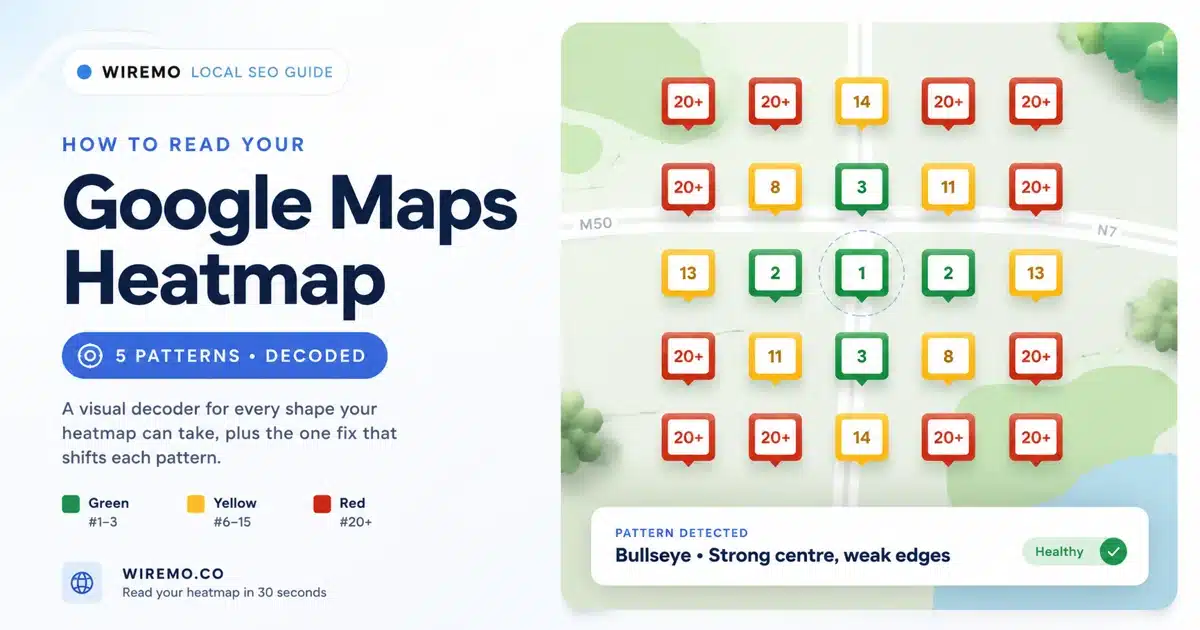
A Google Maps heatmap shows you the same business search from many points across a city or town. Each point is a small scan. The color of each point shows where you rank from that exact spot. Most rank trackers stop there: they hand you a grid of dots and walk away. The hard part is reading the grid. The dots only matter when you can see the pattern they make.
TL;DR – What you'll learn:
- What the green, yellow, and red dots on your Google Maps heatmap actually mean.
- The 5 grid patterns that explain almost every heatmap you will ever see.
- The one main cause and one main fix for each pattern.
- How to act on a weak zone without chasing single-dot noise.
- How often to re-scan, and what counts as a real change vs random variance.
This guide shows you how to read your Google Maps heatmap in five steps. You will learn what the colors mean, the five shapes your heatmap can take, the main cause of each shape, and the one fix that moves it. By the end, you will look at any grid scan and know in 30 seconds what is wrong and what to do next.
What a Google Maps Heatmap Actually Shows
A heatmap is a grid of scan points. Each scan runs the same search, like "plumber Dublin," from a single GPS coordinate. The result is a number, your position in the Maps pack from that point. The grid shows you 25, 49, or 81 of those numbers at once, color-coded so you can spot good and bad areas at a glance.
The map you get is small (usually a 1 km to 5 km square), but it tells you something Google never will: where your business looks strong, where it looks weak, and where it has gone missing. This is the same information your customers see, just spread out across many places at once.
A flat ranking number from Search Console says "average position 11.4." A heatmap says "you are #3 next to your store, #8 across the river, and invisible six blocks south." Those are very different stories.
Use a grid rank tracker like GTrack to pull a grid scan. Then come back to this guide to read it.
Reading the Colors on Your Google Maps Heatmap
Almost every grid rank tracker uses the same three-color system. Once you learn it, you can read any heatmap on any tool.
| Color | Position | What it means |
|---|---|---|
| Green | #1 to #3 | You are in the top 3, the local pack. Customers see you. |
| Yellow | #6 to #15 | You are on page 1, but below the pack. Some clicks, many losses. |
| Red | #20+ | You are on page 2 or further. Almost no one sees you from this spot. |
A few trackers add lighter and darker shades inside each color. Light green might mean #3, dark green #1. Same idea: darker is better. If your tool labels each dot with a number, read those numbers, not the shade. The numbers are the source of truth.
Do not chase one bad dot. A single red point next to a sea of green is often noise: a stray scan, a brief Google update, a single competitor opening a new branch nearby. The pattern across many dots is what tells the truth. Single dots tell you nothing.
Look at the heatmap from two zoom levels: zoomed out to see the shape, zoomed in to see specific zones. The shape tells you what to fix; the zoom tells you where to fix it.
The 5 Google Maps Heatmap Patterns You Will See
Almost every Google Maps heatmap, on any business, in any city, falls into one of five named shapes. Once you know the five, you can name your pattern in 10 seconds and skip to the right fix. The patterns below cover what each one means, the most common cause, and the one move that shifts the shape.
Pattern 1: The Bullseye (Strong Centre, Weak Edges)
A bullseye is the most common heatmap shape you will see. The middle of the grid is green. The next ring out is yellow. The outer ring is red. The pattern looks like a target.
|
BULLSEYE
|
What it means. Google's local pack is proximity-weighted. The closer a searcher stands to your business, the more weight your listing carries. A bullseye is Google telling you: "I see your business clearly when the searcher is close, and I forget about you when they are far away." What causes it? This is the default shape for almost every local business with a decent profile. It is not a failure. The size of the green core is what matters: a 2-dot green core means you are barely showing up; a 9-dot green core means you own the neighbourhood. What to fix. Grow the green core, not the outer ring. The biggest moves come from things tied to proximity weight: review velocity, fresh GBP posts, a complete service area set in your profile, and on-page mentions of the closest neighbourhoods to your store. Use a GBP automation tool to keep posts and reviews flowing without manual work. |
Pattern 2: Scattered Dots (No Clear Shape)
The grid looks like confetti. A green dot here, a red dot there, a yellow dot in the corner, more red dots, another green one. There is no centre and no pattern.
|
SCATTERED DOTS
|
What it means. Your profile signals do not line up. Google is unsure whether to show you for the query, and the answer keeps changing based on small per-search factors (recent reviews, time of day, the exact phrasing of the search). What causes it? Usually one of three things: thin or duplicate Google Business Profile content, an inconsistent business name across the web (your name, address, and phone do not match in every directory), or a primary category that does not match what your business actually does. What to fix. Pick the loudest signal and tighten it. Start with category: check that your primary category is the one that best matches the search you want to rank for. Then audit your name, address, and phone across the top 20 directories. Then add fresh, on-topic posts to your profile every week for a month. Run a free profile health check to spot the biggest gap. |
Scattered dots usually clear up within 6 to 8 weeks once the underlying signal mismatch is fixed. If they do not, the issue is probably a duplicate or suspended profile somewhere else with the same name.
Pattern 3: One-Sided (Strong on One Side, Weak on the Other)
Half the grid is green or yellow. The other half is red. The dividing line is sharp, often a road, river, or postcode boundary.
|
ONE-SIDED
|
What it means. A competitor on the weak side is winning that area. Google is choosing them over you because they sit closer to the searcher, hold more reviews from that side, or have stronger signals tied to that neighbourhood. What causes it? Sometimes it is a single strong competitor in the next postcode. Sometimes it is a physical barrier (a river, a motorway) that splits searcher behavior in two. Either way, you are losing half of your service area. What to fix. Two parts. First, identify the competitor by running the same search from a point inside the red half and noting who shows up. Second, add the weak-side neighbourhoods to your service area, get reviews mentioning those neighbourhoods, and add a page or post about your service in that exact area. You cannot move your building, but you can grow your relevance across the line. |
Pattern 4: All Cold (Everything Is Yellow or Red)
There is no green anywhere. The whole grid is yellow and red. You are not in the local pack from any point.
|
ALL COLD
|
What it means. Either your profile is too new or too thin to compete, or your primary category does not match the search you are tracking. What causes it? Most common: a category mismatch. You are a "Plumber" tracking "emergency plumber," but your primary category is "Plumbing Service" and the local pack only shows businesses with "Emergency Plumber" set. Second most common: review count under 10 in a competitive market. What to fix. First, switch the primary category to the one that best matches your target search. Wait two weeks. Re-scan. If the grid lights up green in the centre, the fix is done. If not, the issue is review volume or profile completeness, in that order. Use a local pack checker to confirm which competitors are showing in the pack for that exact query. |
Do not stuff your business name with keywords ("Joe's Plumbing, Emergency 24/7 Dublin"). Google detects keyword stuffing and silently filters your profile out of the pack. Use the legal name only.
Pattern 5: Shrinking Centre (Was Strong, Now Thinning)
You used to have a 9-dot green core. Now you have a 1-dot green core. The outer rings still look the same. Something has eaten the middle.
|
SHRINKING CENTRE
|
What it means. Something has slipped in your profile or your local signals over the last 30 to 90 days. The proximity signal that used to carry you across the inner ring no longer does. What causes it? Usually one of: a Google algorithm update, a new competitor opening near your location, a drop in review velocity (you stopped asking), a change to your GBP (someone edited the hours, address, or category), or a citation that broke when an old directory site shut down. What to fix. Run a quick three-step check. First, look at the date the centre started shrinking on your tracker and cross-reference it with Google's official search blog for confirmed updates. Second, audit your last 60 days of GBP changes; even small edits to hours or services can trigger a re-rank. Third, check whether a new competitor has opened within 500 metres. If none of those explain it, the issue is silent profile drift, and you need a full audit. |
What to Do Once You Spot Your Pattern
Reading the Google Maps heatmap is the easy part. Acting on it is where most local businesses stall. Use this short decision flow.
| If your pattern is | Do this first | Expected timeline |
|---|---|---|
| Bullseye | Grow the green core with reviews and fresh GBP posts | 6-12 weeks |
| Scattered Dots | Fix category, then NAP, then post cadence | 6-8 weeks |
| One-Sided | Identify the competitor, expand the service area, and add area-specific content | 8-16 weeks |
| All Cold | Switch primary category; check profile completeness | 2-4 weeks for category, longer for reviews |
| Shrinking Centre | Find the date, check for an algo update, and audit recent GBP edits | 1-4 weeks to identify, longer to recover |
Re-scan the grid every 7 days after you make a change. Do not act on a single fresh scan. Wait for three consistent scans before you decide a fix is working. If the new pattern looks different from any of the five above, you are likely between patterns (a Scattered Dots that is starting to form a Bullseye, or a Bullseye that is becoming a Shrinking Centre). Re-read the most recent grid and pick the closer match.
Frequently Asked Questions
1. Can I read a Google Maps heatmap without paying for a tool?
You can pull a single scan for free using a location-spoofed search (incognito, plus a free SERP checker with the latitude and longitude set). It is fine for one-off spot checks. For real pattern reading, you need a tool that runs many points at once and saves history. Reading a single dot is reading a single word from a book.
2. How many grid points are enough for a clean read?
A 5x5 (25 points) is fine for a tight urban service area (1 to 2 km). A 7x7 (49 points) is right for most cities. A 9x9 (81 points) is for very large service areas or HVAC-style businesses covering an entire region. More points cost more credits and slow each scan, so pick the smallest grid that still covers your full service area.
3. What does it mean when only one dot changes between scans?
Usually noise. Google adds 1 to 3 positions of natural variance to most local pack results, driven by spam-filter cycles and per-session weighting. One changed dot inside a wider pattern that held steady is almost always noise, not a real ranking move.
4. My heatmap looks fine, but I am not getting calls. What gives?
The heatmap is one piece. Calls come from clicks, and clicks come from your profile photos, your review snippet, and your call-to-action. A green grid with no calls usually means a profile-presentation problem: weak photos, low review count, or a service description that does not match what the searcher wants. Pair the heatmap with a profile audit, not just with more rank tracking.
5. How often should I re-read my Google Maps heatmap?
Once a week is plenty for most businesses. Twice a week if you are in a recovery window after a Google update or a profile change. Daily reads are a waste of credits and will show you more noise than signal.
6. Can I share a Google Maps heatmap with my client without giving them a login?
Yes. GTrack ships a whitelabel share link for both single scans and scheduled scans. Anyone with the link can view the result, with no login and no account, branded with your own domain on paid plans. Revoke the link at any time from the Manage Shared URLs section.