What you'll learn
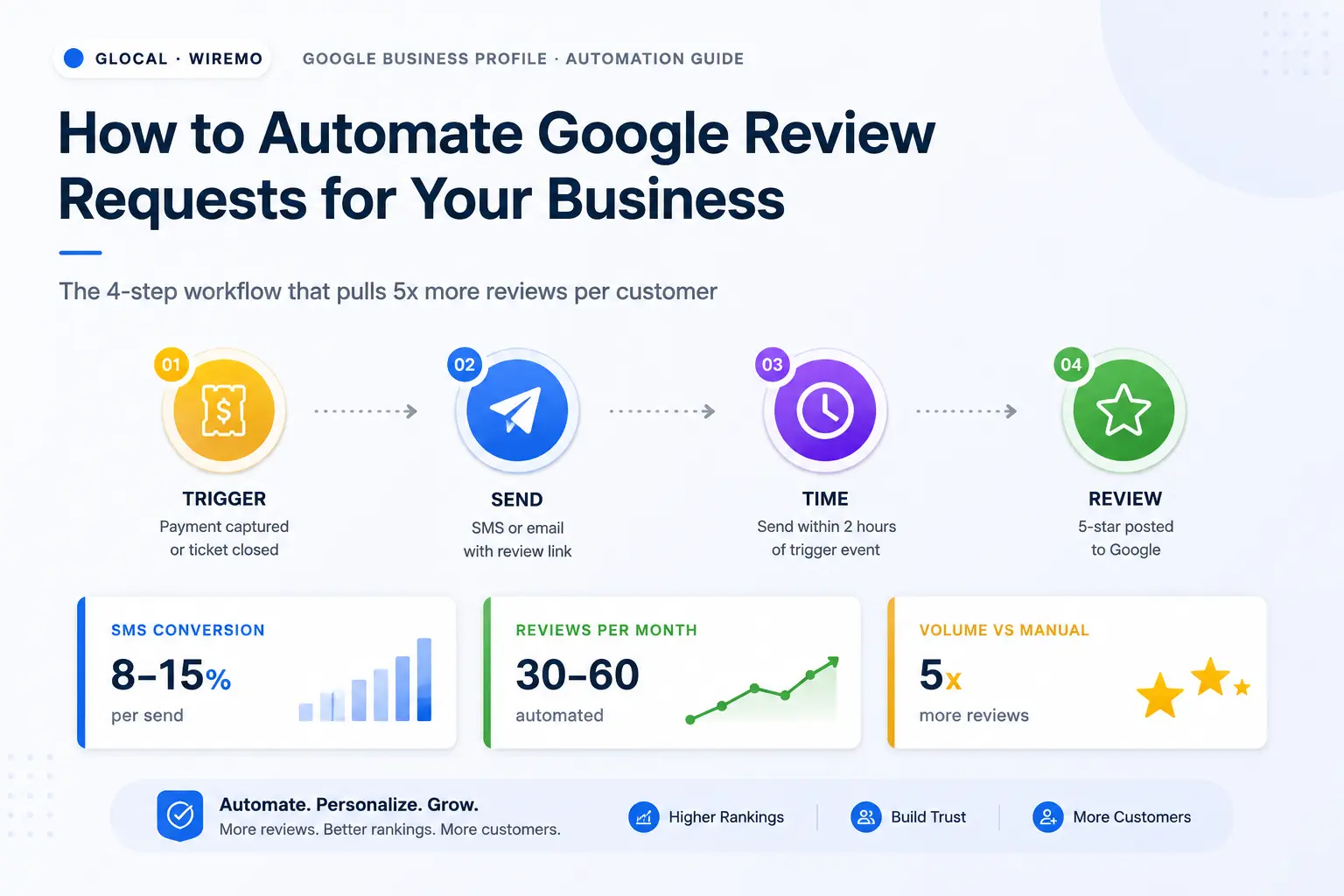
- The 3 moving parts behind every Google review automation: trigger, message, link
- Why SMS converts at 8-15% and email at 1-3% (and when to use each)
- The exact send-time window per business type (restaurants, salons, home services, e-commerce)
- 7 common mistakes that quietly kill review velocity, and the 30-minute fix for each
- How to pick the right automation tool for one location vs 30+ locations
The hardest part of running Google reviews for a business is not getting one review. It is getting reviews consistently, from every paying customer, without burning an hour a day on it. That is what Google review automation solves. The owner stops being the bottleneck.
This article walks through the operator-side workflow: how Google review automation actually works, which channels convert and which do not, when to fire the request, the mistakes that kill velocity, and how to pick the tool that fits a one-location shop or a 30-location chain.
Why Automate Review Requests
Manual review requests have a ceiling. The owner asks the customer at checkout, the team forgets after a busy Friday, the post-it on the register fades, and by week three, the request rate drops to zero. Google review automation removes the human memory dependency entirely. The system fires the request whether you remembered to ask or not.
MANUAL ASKING
3-5 reviews per month
- Owner asks 5% of customers
- Team forgets when busy
- Velocity drops to zero by week 3
- 0.5-2% conversion on asks
AUTOMATED REQUESTS
30-60 reviews per month
- System triggers on every transaction
- Runs whether team remembers or not
- Velocity holds month after month
- 8-15% conversion on SMS sends
The math is brutal in favor of automation. A coffee shop serving 400 customers a week that asks 5% of them manually generates 20 requests and converts 2-3 into actual reviews. The same shop with the automation firing on every transaction generates 400 requests and converts 32-60 reviews. That is 10-20x the volume with less work, not more.
The Local-Pack Ranking Effect
There is a second effect that compounds. Automated review velocity feeds Google's local-pack ranking signal directly. A business that posts 30+ fresh reviews per month outranks one with 200 stale reviews from years past, even if both have a 4.7 average. Google review automation is not just an acquisition tool, it is a local SEO lever.
How Review Automation Works
Google review automation has three moving parts: the trigger, the message, and the link. Get all three right and the customer goes from "I had a good experience" to a posted 5-star review in under 90 seconds. Miss one and the request quietly fails.
Trigger
Payment captured, ticket closed, appointment marked complete
Message
SMS or email with the customer's name and the review link
Link
The Google review URL that opens the rating dialog directly
The Trigger
The trigger is the event that fires the request. Common triggers: payment captured, appointment completed, ticket closed, order delivered, service marked done in the CRM. The trigger has to map to the moment the customer would describe as "the experience just ended on a positive note." Triggering too early (mid-service) feels presumptuous. Triggering too late (a week later) loses the emotional moment.
The Message
The message is what the customer sees. For SMS, one or two sentences, the customer's first name, and the link. For email, a short subject line, the customer's name, one paragraph of context, and a single button. No long pitches, no testimonials about reviews, no surveys before the review. Friction kills conversion.
The Review Link
The link is the Google review URL that opens the rating dialog directly. The cleanest version comes from the Google Business Profile dashboard under "Get more reviews" and looks like g.page/r/.... For in-person touchpoints (receipts, counters, table tents, invoices), a free Google review QR code turns that URL into a scannable, print-ready PNG delivered to your inbox in seconds. Every automation system is essentially a wrapper around the same link.
End-to-End Workflow Walkthrough
The 7-minute walkthrough below shows the complete workflow end-to-end inside a working tool: connecting a Google account or custom mail server, enabling automated review requests, setting daily limits and timezone, customizing the email template with dynamic variables, importing a customer list, tracking statistics, sending manual requests, and configuring the review filtration page that intercepts low ratings before they hit Google.
Video chapters: Automation Settings (0:15) · Email Template (1:15) · Customer List (2:05) · Statistics (2:38) · Manual Request (3:16) · Review Filtration (4:25) · Filtered Reviews Dashboard (6:48)
SMS and Email Channel Automation
Review automation runs on two channels: SMS for the highest conversion when you have the customer's phone number, and email as the fallback for everything else. Most operators run both in parallel: SMS as the primary, email as the backstop for customers who opted out of SMS or never gave a phone number. The two channels follow different rhythms, different timing windows, and different message structures.
SMS Review Requests
SMS is the highest-converting channel in any review automation stack. The phone is in the customer's hand, the message is unmissable in the notification bar, and the link is one tap away from the review form. SMS conversion sits between 8% and 15% reliably when the timing is right.
WHAT THE CUSTOMER SEES
Sent 2 hours after appointment marked complete
The 2-hour post-service window is where the conversion peaks. Send the SMS too early and the customer hasn't fully processed the experience. Send it the next day and the moment is gone. Two hours after the appointment finished, the ticket closed, or the order was delivered is the sweet spot for most service businesses.
A working SMS template that converts at 10%+ across categories: "Hi [Name], thanks for visiting [Business] today. If you had a good experience, would you mind leaving us a quick Google review? It takes 30 seconds: [link]". Three sentences, no fluff, the link at the end where the eye naturally lands.
There is one rule about SMS that owners regularly violate and Google penalizes for: never send a second SMS request to the same customer within 30 days. One ask, one polite reminder seven days later if no reply, then silence. Anything more aggressive triggers spam complaints and can get your phone number flagged by the carriers.
Email Review Requests
Email is the second-tier channel in a review automation stack. It converts at 1-3% rather than the 8-15% of SMS, but it has lower setup friction, no per-message cost, and works for businesses that do not collect phone numbers (B2B, e-commerce, online services). For those use cases, email is the only channel.
The structure of a converting review-request email is short. Subject line under 50 characters, customer's first name in the greeting, one paragraph that thanks them and asks for the review, one button labeled "Leave a Google review", and a one-line sign-off. No marketing copy below the button. No newsletter footer that distracts from the single action.
Email timing follows a different rhythm than SMS. The 2-hour window does not apply because most people are not in their inbox at hour 2. The best email send-time is 18-36 hours after the service or delivery, which catches the customer when they next check email and the experience is still fresh enough to motivate action.
Pro tip
A well-designed Google review automation does more than push everyone to Google blind. The smart pattern is to give the customer a private feedback path first, capture concerns before they become a public 1-star, and route satisfied customers straight to your Google profile with one click. That workflow is called review filtration, and it is covered in the next section.
Review Request Timing Triggers
Picking the right trigger is the most consequential decision in any review automation setup. The wrong trigger drops conversion by 50% even with perfect message copy. The right trigger lifts conversion above the channel averages.
SEND-TIME CONVERSION CURVE
When the message lands relative to the service
The emotional moment fades fast. Most of your conversion is gone after 72 hours.
Review Triggers by Business Type
| Business type | Best trigger | Delay |
|---|---|---|
| Restaurant, cafe, retail | Payment captured | 2 hours after |
| Salon, spa, dental | Appointment marked complete | 2 hours after |
| Home services (plumbing, HVAC) | Job ticket closed in CRM | 24 hours after |
| Auto repair, mechanics | Vehicle handed back | 4 hours after |
| E-commerce | Delivery confirmed | 3 days after |
| B2B services, agencies | Project milestone signed off | 48 hours after |
| Medical, clinics | Appointment marked seen | 24 hours after |
Review Triggers to Avoid
One trigger to never use: do not fire the automation on first booking or first appointment confirmation. The customer has not had the experience yet. Asking for a review on a future intention is a guaranteed 0% conversion and an annoying signal that your automation is not actually paying attention to the customer.
The exclusion list matters too. Customers who complained, requested a refund, or rated the experience low in an internal survey should be removed from the automation queue. Sending a Google review request to an unhappy customer is a direct way to manufacture a 1-star public review.
Google Review Automation Mistakes
The teams that struggle to make Google review automation work usually struggle for one of these reasons. Each one is a 30-minute fix once you spot it.
Wrong link
Linking to your homepage instead of the writereview URL. The customer hunts for a button that does not exist and gives up. Always link directly to the rating dialog.
Repeat sends within 30 days
Asking the same person more than once a month feels like spam. One ask, one optional reminder at day 7, then leave them alone for 90 days.
No exclusion list
Including customers who complained or got refunded generates 1-star reviews. Skip anyone who opened a support ticket or scored under 4 in the prior 7 days.
Ignoring the reply side
Automation that pushes IN but ignores the reviews coming OUT is half a system. Every new review needs a reply within 24 hours from the same dashboard.
Sending from no-reply addresses
Emails from no-reply@ get half the open rate of emails from a real person's name. Use the owner's name or the location manager's, and reply-enabled inboxes.
No team training
Even with automation running, the in-person verbal ask adds 10-15% on top. The automation is the floor, not the ceiling. Train every team member.
Generic message copy
Template messages without the customer's first name and the business name read as bulk spam. Personalize the two variables that matter most.
Choose a Review Automation Tool
Picking the right tool depends on three variables: the number of locations you run, where the trigger lives (POS, CRM, calendar, e-commerce platform), and whether you need the automation to also handle reply management. Most single-location operators can run the workflow with a focused tool. Multi-location operators need a platform that scales per-location and routes replies by branch.
Review Filtration as a Tool Feature
Review filtration is the part of Google review automation that most operators set up wrong, or skip entirely. Before you pick a tool, decide if you want filtration in the workflow. The idea is simple: before pushing every customer straight to a public Google review form, give them a moment to share their honest experience on a private intake page. Happy customers click through to Google. Unhappy customers leave private feedback you can act on before it turns into a 1-star public review.
Done right, review filtration accomplishes three things at once: it protects the business from preventable bad reviews, it turns customer complaints into recovery opportunities, and it concentrates Google submissions on customers who genuinely want to leave a public endorsement. The "Review us on Google" CTA stays visible on the filtration page, so customers always have the path to a direct public review if they choose it.
The filtration page uses either emoji feedback or a star rating threshold. Ratings above your threshold (typically 4 stars and up) see a direct "Review us on Google" button. Ratings below the threshold get a private feedback form: what went wrong, what would have made it right, contact info if the customer wants a response. The business gets an instant email notification, the feedback lands in the dashboard, and the owner can reach out, resolve the issue, and re-request a Google review once the customer is happy. The walkthrough video above covers the filtration setup from 4:25 onward, and you can see how a tool that lets you automate Google reviews like GLocal handles the full flow.
Good practice
Keep the "Review us on Google" button visible on every filtration page, regardless of rating. Customers who want to leave a public review should always have a one-click path. Filtration is about giving customers a choice, not removing one. The goal is fewer preventable bad reviews, not zero bad reviews.
Single-Location Review Stack
SINGLE LOCATION
Focused review-only tool
- Inbox + AI reply drafts
- SMS + email automation
- Weekly reporting
- $50-100/month
Setup time: 60-90 minutes
MULTI-LOCATION (3-300)
Full GBP automation suite
- Per-location inbox routing
- GBP posts scheduled in bulk
- Aggregated reporting
- $50-300/month per location
Setup time: 1-2 days
Multi-Location Review Stack
For multi-location and franchise operators, a tool that lets you automate Google reviews like GLocal handles the full loop end-to-end: SMS and email automation per location, GBP post scheduling alongside, review reply inbox routed by branch, and aggregated reporting on velocity and conversion. The same dashboard that fires the request also catches the reply.
For single-location operators focused only on the review side without the broader GBP workflow, a focused customer review console like Wiremo's review platform handles the automation, AI reply drafts, and weekly reporting on its own. Lower setup cost, faster time to first request fired.
Whichever tool you pick, make sure it lets you also automate the rest of your GBP. A Business Profile post tool turns the same customer-experience moments into scheduled GBP posts, which compound with reviews as a local-pack ranking signal. Google's own guidance on encouraging reviews spells out the policy boundary: ask everyone the same way, do not incentivize, and never gate by rating.
Google Review Automation FAQ
Is Google review automation against Google's policy?
No, asking every customer for a review through SMS or email is fully within policy. What violates policy is review gating (filtering ratings before they reach Google), incentivized reviews (discounts in exchange for a review), and fake review networks. Plain automated requests sent to every paying customer are allowed.
How much does Google review automation cost?
The SMS service runs $30-100 per month per location for moderate volume. A multi-location review-management platform with built-in automation runs $50-300 per month per location depending on features. The Google review link itself is free.
How fast can I set up Google review automation?
For a single location, 60-90 minutes from sign-up to first request fired. The setup includes connecting the POS or calendar as the trigger source, writing the SMS and email templates, testing the link, and turning on the automation. Multi-location setups take longer because each location needs its own GBP connection and trigger configuration.
Can I use one phone number for SMS automation across multiple locations?
Technically yes, but conversion drops because the recipient sees an unfamiliar area code. The best practice is to use a local 10-digit number per location, which the SMS service can provision on your behalf. The cost is around $1-2 per number per month.
Will Google review automation get my SMS number flagged?
Only if you violate carrier guidelines: asking the same person more than once per 30 days, sending without consent (every customer should be told at checkout that a confirmation SMS is coming), or hitting volume thresholds without registering the campaign. Properly configured Google review automation runs for years without flags.
Should I automate review requests for negative experiences too?
No. Build an exclusion rule that skips any customer who opened a support ticket, requested a refund, or rated below 4 stars in an internal survey within the prior 7 days. Automating requests for unhappy customers is the fastest way to manufacture 1-star Google reviews.
What is the difference between Google review automation and review widgets?
Automation is the request workflow (trigger, message, link, reply routing). Widgets display reviews back on your website using the same data via the Google API. Most platforms ship both, but they solve different problems: automation grows the review base, widgets convert website visitors using social proof.
How do I measure if Google review automation is working?
Three metrics matter: request-to-review conversion rate (target 5%+ for email, 8%+ for SMS), new reviews per month (target 10+ for single location), and reply rate within 24 hours (target 100%). The platform dashboard should surface all three. If any drop month-over-month, investigate the trigger first, the message second, the link third.