The position Google shows you in Search Console is not your real Google Maps ranking. For most local businesses, it's a blended average across dozens of search contexts, and acting on that number leads to misplaced priorities and wasted budget.
Here's what that looks like in practice. A dentist in Chicago checks Google Search Console and sees an average position of 9 for "dentist near me." They assume their local SEO is working. What Search Console doesn't show: they rank #2 in Lincoln Park, where the office is located, and #18 in Wicker Park, three miles away. Half their service area doesn't know they exist.
Check Google Maps ranking the right way means looking at your position by location, not just one averaged number. This guide explains the difference, why it matters, and the step-by-step method to get accurate data you can actually act on.
Here's what we'll cover:
- Why Search Console rankings mislead local businesses
- How to check Google Maps ranking manually (and its limits)
- How grid-based rank tracking works and why it matters
- A step-by-step walkthrough with GTrack
- What to do after you see your data
TL;DR
- Google Search Console shows a blended average, not your real Google Maps position by location
- Manual incognito searches give you one data point in your entire service area
- Grid-based rank tracking shows your position across dozens of points in your city on a visual heat map
- GTrack runs this check in minutes, so you can see exactly where you rank, and where you're losing customers
Why Google Search Console Rankings Don't Reflect Your Real Google Maps Position
Google Search Console's position metric is an average. It collapses your ranking across every impression your listing received, different users, different neighborhoods, different devices, and different search histories into a single number.
For broad organic SEO, that average is useful. For Google Maps, it's actively misleading.
Google Maps ranking works differently from standard web search. Distance is a core ranking signal. Your position for "plumber near me" changes depending on where the searcher is standing. Same business, same keyword, completely different results depending on which street corner the search originates from.
Search Console averages all of those positions into one number. If you rank #2 in the neighborhood around your shop and #19 in the suburb four miles east where you take most of your jobs, Search Console might show you a blended position of #8. The #8 feels fine. The #19 is the problem you can't see.
This is why local businesses routinely believe their Google Maps SEO is working when they're invisible across large parts of their service area. The metric they're tracking doesn't reflect what their customers actually experience.
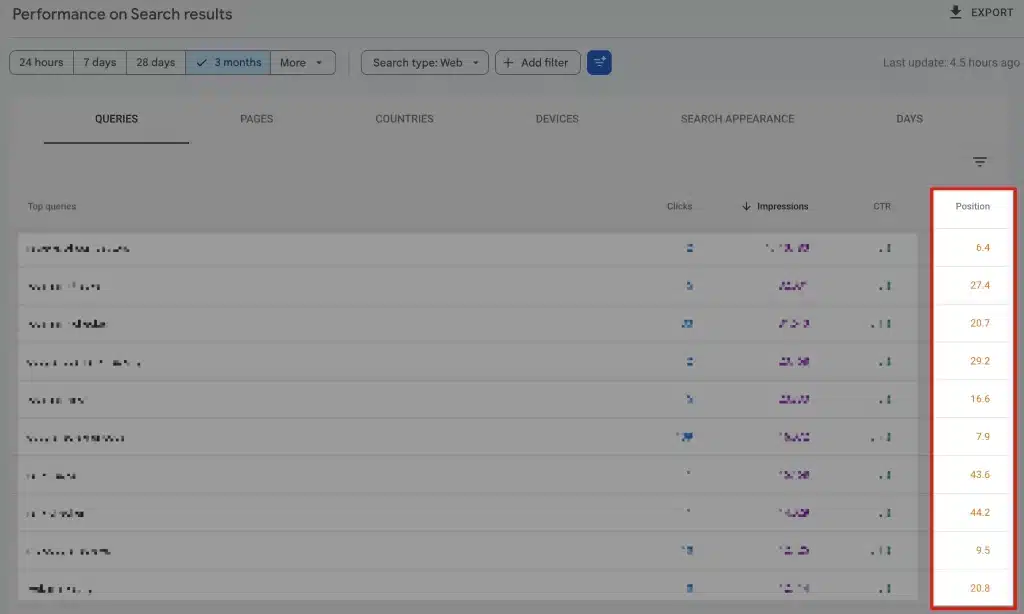
You can see this for yourself in Search Console. Open the "Search results" report under the Performance section in the left sidebar. Set the timeframe to 3 months using the date filter at the top. Then make sure "Average position" is checked in the metrics row so the Position line appears on the chart.
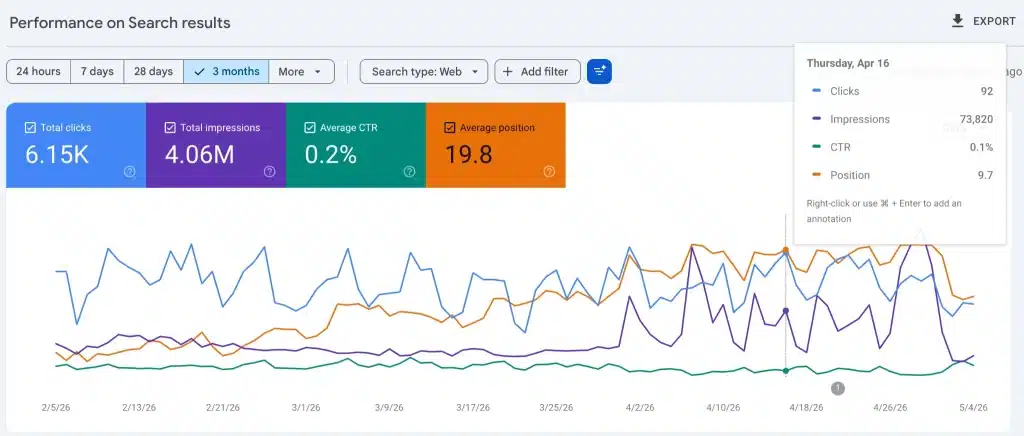
Scroll down past the chart and click the "Queries" tab. Sort by "Impressions" (descending) to surface the keywords your site actually appears for. Then look at the "Position" column on the right. Each number is a blended average across every location, device, and search session where your listing appeared. There is no way to see how you rank in one neighborhood vs. another from this view.
The Three Factors Google Uses to Rank Local Businesses
According to Google's local ranking documentation, three factors determine where a business appears in Google Maps results:
- Relevance - How closely your Google Business Profile matches the search query
- Distance - How far your business is from the searcher's location
- Prominence - How well-known and trusted your business is (reviews, mentions, links)
Distance changes with every single search. Relevance and Prominence you can optimize. But without knowing your position by location, you can't diagnose which factor is costing you visibility in specific parts of your city or determine where to focus first.
How to Check Google Maps Ranking Manually
The manual method gives you a quick starting point. Here's how to do it correctly so the result is as accurate as possible.
Step 1: Open an incognito or private browser window. This removes your personal search history and logged-in Google account from the results. Checking in a standard browser window while signed into Google will show you personalized results that don't reflect what your customers see.
Step 2: Search for your target keyword and city. For example: "plumber Austin," "dentist Chicago," or "Italian restaurant Denver." Avoid using "near me" for this test; those results are anchored to your current physical location, which skews the data.
Step 3: Look at the local pack. The local pack is the map section with 3 business listings that appear at the top of the results page. If you're in the top 3, note your position. If you're not there, click "More places" to find where you rank in the extended local results.
Step 4: Repeat for each keyword you care about. If you serve multiple search terms, "emergency plumber Austin" vs. "drain cleaning Austin" vs. "water heater repair Austin", check each one separately. Your position varies by keyword as well as by location.
For a quick first look, this works. But it has real limitations that make it unreliable as an ongoing tracking method.
Want to see how your ranking holds up across your entire service area? GTrack's Google Maps rank tracker generates a visual position grid for every point in your city, not just one averaged search result.
Why Manual Google Maps Rank Checking Falls Short
Manual incognito searches have four structural problems that make them unreliable for business decisions.
They show one location. A city-level search defaults to the geographic center of the city. Your ranking in the north end, the suburbs, or the adjacent zip codes where you actively serve customers is completely invisible.
Your IP address still influences results. Even in incognito mode, Google uses your approximate location based on your IP address. If your office is downtown, you're checking your downtown ranking, not how you appear to customers in neighborhoods 8 miles away.
You can't track change over time. Manual checks are ad hoc and inconsistent. Without a controlled, repeatable process, you can't compare this week's position to last month's or measure whether a Google Business Profile update actually improved your rankings.
You can't see what competitors are doing. Manual searches show your own position but not how close your top competitors are, which neighborhoods they dominate, or where there's an opening to move up.
Carlos runs a plumbing business in Phoenix. He'd been manually checking his Google Maps position monthly for over a year. His incognito searches always showed him in the top 3, so he assumed his local SEO was solid and directed his marketing budget to paid ads instead.
When he eventually ran a grid-based rank check, the picture looked very different. He ranked in the top 3 in only a 4-square-mile radius around his business address. In 60% of his stated service area, the suburbs where he actively took most of his jobs, he didn't appear in the local pack at all. The calls he assumed were coming from Google Maps in those areas were actually referrals. Every organic call from those neighborhoods was going to his competitors.
Manual checks had given him a false sense of security for over a year.
The Accurate Method: Grid-Based Google Maps Rank Tracking
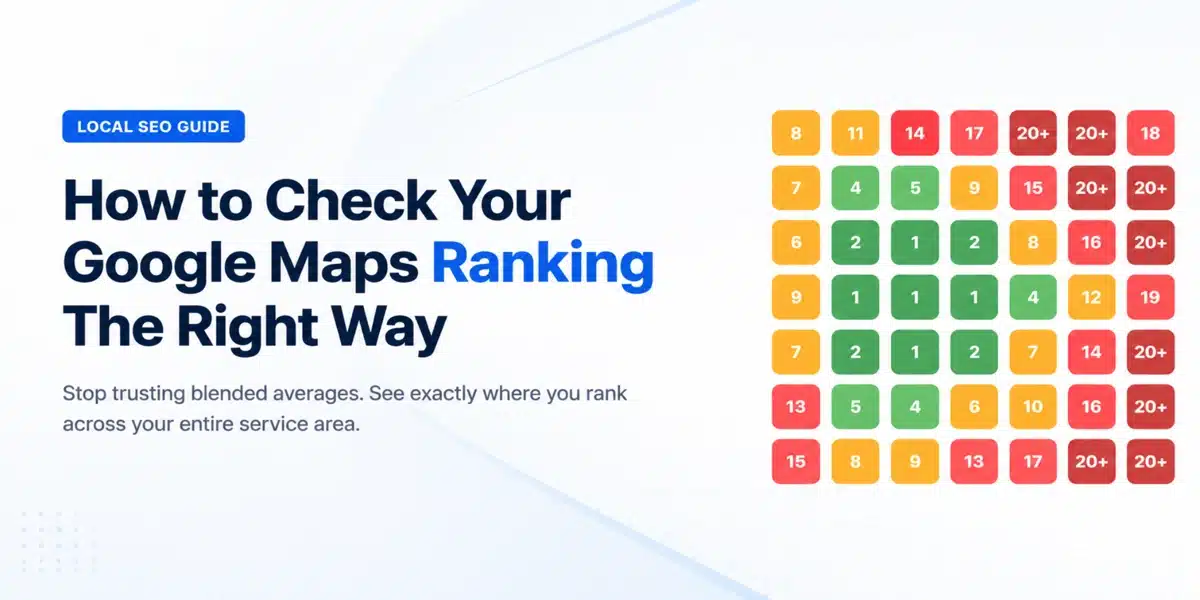
A grid-based rank tracker works differently from a manual search or Search Console.
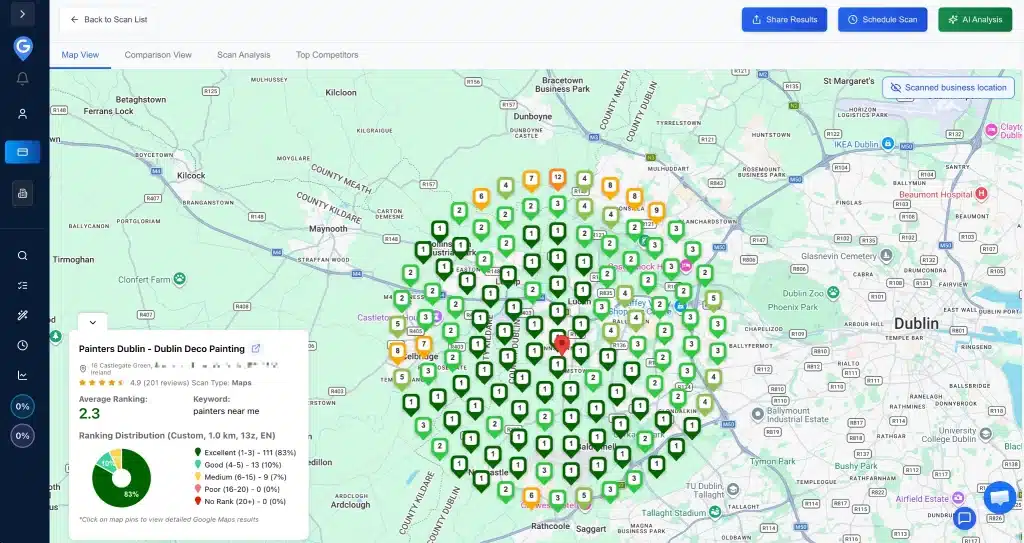
- Dark green: Positions 1-3 (top results, highest visibility)
- Light green: Positions 4-5 (still strong)
- Orange: Positions 6-15 (page 1, but low clicks)
- Pink/red: Positions 16-20 (low visibility, rarely clicked)
- Dark red: Position 20+ or no rank (effectively invisible to searchers)
This format makes ranking gaps immediately visible. A cluster of red in the northeast quarter of your city tells you exactly where to focus. A band of orange along a major corridor tells you you're close to the top results but not there yet; often, a small improvement in review volume or GBP completeness can flip those pins to green.
Compare that to Search Console reporting an average position of 7.4. One number vs. a map with 49 data points. One tells you something is off. The other tells you where and how severe the problem is.
This is what checking your Google Maps position should actually look like for any business with a real service area.
Ready to see your full ranking grid? Run your first free GTrack scan. It takes five minutes and shows you exactly where you rank and where you're losing customers to competitors.
Step-by-Step: How to Check Your Google Maps Ranking with GTrack
Here's the exact process for setting up a Google Maps rank check using GTrack.
Step 1: Create Your Account
Sign up at gtrack.wiremo.co no credit card required to start.
Step 2: Add Your Business
Search for your business name and connect your Google Business Profile listing. GTrack uses your verified GBP data to ensure it's tracking the right listing, not a duplicate or outdated entry that would skew your results.
Step 3: Choose Your Keywords
Add the search terms you want to track. Start with 2 to 3 core keywords before expanding. If you're not sure which terms to prioritize, the free local SEO keyword generator builds a keyword list based on your business type and location, including geographic variants and service combinations you might have missed.
A plumber in Dallas would start with: "plumber Dallas," "emergency plumber Dallas," and "drain cleaning Dallas." A dentist in Atlanta might use: "dentist Buckhead," "dental implants Atlanta," and "family dentist Midtown Atlanta."
Step 4: Define Your Grid
Set the center point of your grid, usually your business address or the geographic center of your service area, and choose your grid size. A 7x7 grid gives you 49 data points and works well for most city-based businesses. Larger service areas benefit from a 10x10 grid.
Step 5: Run Your Scan
GTrack checks your Google Maps position at each grid point. Scans are complete in less than a minute.
Step 6: Read Your Heat Map
The heat map is your output. Green sections are where you're winning. Red or blank sections are where customers search and don't find you. The pattern across the map tells you which areas to prioritize and where competitor listings are currently beating you.
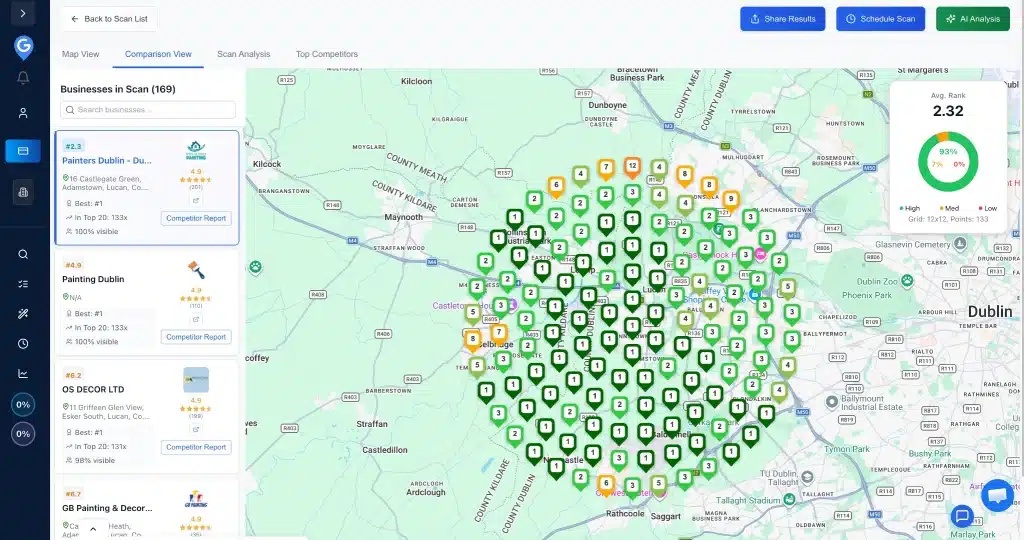
A local painting business in Dublin. After running his first GTrack scan, the heat map showed orange and red pins across the north side of the city. He already knew he was losing calls from that area but had no idea why.
The Comparison View told him. A competitor with 199 reviews was ranking first across 98% of those same grid points. His own profile had 34 reviews and no posts in four months.
He didn't need to guess at the problem anymore. He set up a review request sequence for every completed job, posted weekly updates to his Google Business Profile, and targeted his next five review asks specifically at customers in the north Dublin area. Three months later, his average ranking in that corridor dropped from 9.4 to 4.1.
The scan didn't tell him what to do. But it showed him exactly who he was losing to and where, which made the next step obvious.
What to Do After You Check Your Google Maps Rankings
Ranking data is only useful when you act on it. Here's a simple framework for turning grid results into priorities.
Identify your worst areas first. Look for clusters of red or blank pins. These represent the biggest gaps in your local visibility, places where you're either barely ranking or completely absent from the top results.
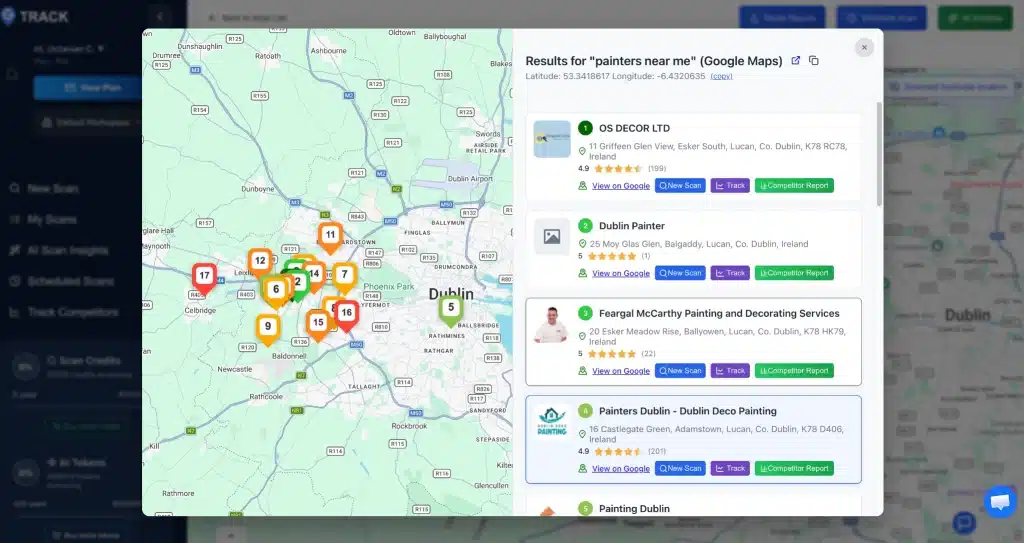
Look at what the top-ranking businesses are doing. Click any pin on your GTrack map to see exactly who ranks above you at that location and what position they hold. From there, open their Google Business Profile and look at the top 3 listings. What's their review count? How many photos do they have? When did they last post? Are they responding to reviews? These signals often reveal what's keeping them above you.
Prioritize by business impact. A ranking gap in a high-density neighborhood with heavy foot traffic matters more than one in a low-population area. Focus your improvements where the search volume and commercial value justify the work.
Track changes monthly. Run the same scan 30 days after any significant GBP update, review campaign, or local SEO change. If the grid improves, the change worked. If it doesn't, adjust and try something else. Monthly data gives you a feedback loop that ad hoc manual checks never provide.
If you manage multiple locations or want to compare tools before committing, reviewing the best local rank tracker tools available in 2026 will help you find the right fit for your scale and reporting needs.
Frequently Asked Questions
1. How often should you check Google Maps ranking?
Monthly is the right cadence for most local businesses. After making significant changes to your Google Business Profile, updating services, adding photos, running a review request campaign, wait 4 to 6 weeks before re-scanning to let Google process the changes. Checking more often than weekly rarely reveals meaningful movement.
2. Why does my Google Maps ranking change depending on where I search from?
Distance is a primary Google Maps ranking factor. Your position for "dentist near me" differs depending on whether someone is searching two blocks away or two miles away. Google weights proximity heavily, which means your ranking is inherently location-dependent, and why a single averaged Search Console position doesn't tell you anything actionable about your real local visibility.
3. Is there a free way to check my Google Maps ranking?
The incognito manual method described above is free and gives you one data point quickly. For a grid-based check, GTrack offers free scans to get started with no credit card required. The manual method costs nothing but doesn't give you the location-level data needed to make informed decisions about where to improve.
4. Does my Google Maps ranking affect my website traffic?
Yes, directly and significantly. The #1 local pack result captures roughly 33% of all local clicks for that query. Businesses outside the top 3 receive a dramatically smaller share. Improving your grid coverage in high-traffic neighborhoods translates directly into more calls, website visits, and foot traffic.
5. What keywords should you track for Google Maps?
Start with your primary service plus your city: "plumber Austin," "dentist Denver," "Italian restaurant Chicago." Then add service-specific variants and neighborhood-level terms if your service area spans multiple districts. The free local SEO keyword generator builds this list based on your business category and location, including terms you might not have considered targeting.
Check Your Real Google Maps Ranking Today
Your Google Maps ranking is not a single number. It's a map.
Search Console gives you an average that smooths over the real picture. Manual incognito searches give you one data point in a city of thousands. Neither tells you where you're winning, where you're invisible, or what to fix first.
A grid-based check takes five minutes and shows you what's actually happening across your service area. That's the information you need to make decisions that move the needle, and to measure whether your local SEO work is actually paying off.