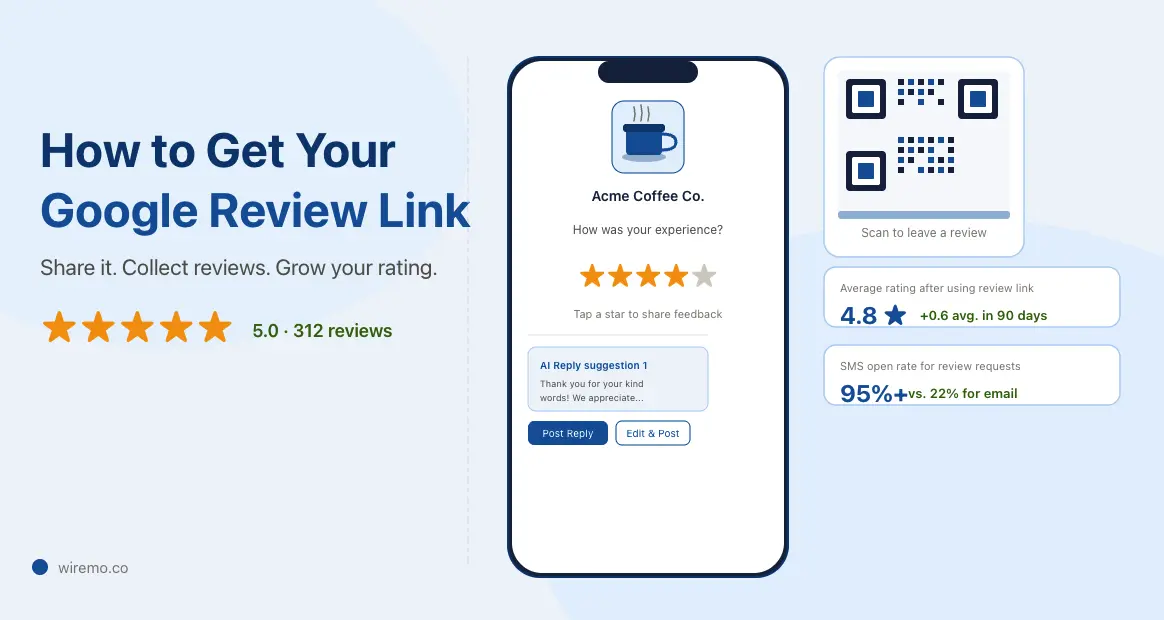
Your Google review link is a direct URL that opens the review form on your Google Business Profile. Customers click it and land straight on the "Write a review" box, no searching required. That one extra step you remove, finding your business on Google Maps, is exactly where most customers drop off.
Below you'll find how to get that link in under a minute, how to turn it into a short link and a QR code, the best places to share it, and what actually moves the needle on review volume.
Bottom Line: Your Google review link lives inside your Google Business Profile dashboard. You can grab it in under 60 seconds. The real work is turning it into something shareable and getting it in front of customers at the right moment.
How to Get Your Google Review Link
From your Google Business Profile Dashboard, this is the fastest route for anyone who actively manages their profile.
- Go to your Google Business Profile. Search for your business name on Google while signed in to the account that manages the profile.
- Click "Ask for reviews" in the panel that appears on the right side of the search results.
- Copy the link. A pop-up appears with your unique short URL (formatted as
g.page/r/XXXXXXX/review). Copy it, and you're done.
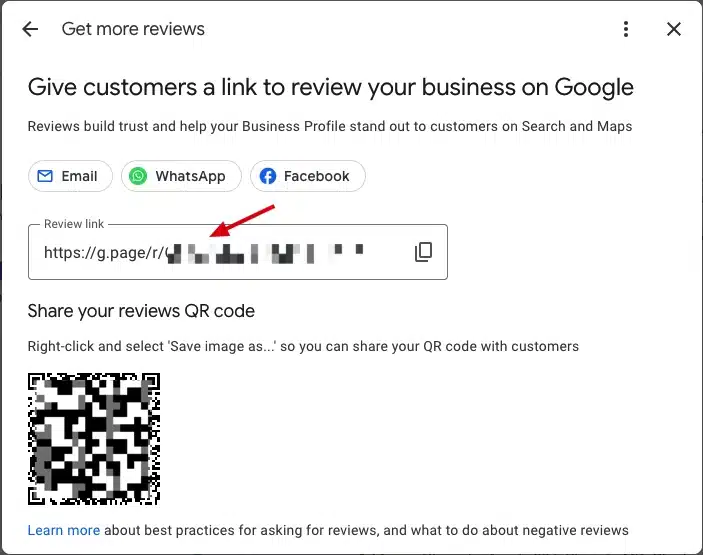
From that same pop-up, you can share the link directly via WhatsApp, Facebook, or email. If you manage multiple locations, repeat this for each one and keep all the links in a shared document that your team can access.
Tip: Always test the link on your phone before sending it to customers. Open it in mobile Chrome or Safari and confirm it takes you directly to the star rating screen, not to your general Maps listing. One wrong URL and every request you send that week produces zero reviews.
Turn Your Review Link into: Short Link, QR Code, Print Template
The raw URL Google gives you works, but it's long and impossible to type from memory. It does nothing for you on a counter card, a receipt, or a product insert. Before you share it anywhere, you need two things: a clean short link for digital use and a QR code for physical placements.
Wiremo's free Google Review QR Code generator handles it all in one step. Enter your business name, select it from the dropdown, and the tool creates a short link tied directly to your Google Business Profile review page, a print-ready QR code pointing to the same destination, and access to 15 ready-designed QR code templates, one of which you can use for free. Pick the one that fits your business, and it's ready to print straight away, no design work needed.
That's the faster route over manually hunting for your Place ID, copying a raw URL, and running it through a separate QR generator. Everything comes out in one go, already matched to your business.
Where to Put Your QR Code
Once you have your QR code, here's where to put it to get actual scans:
- Counter card or table tent. Place it at eye level near the register or on dining tables. Short copy works best: "Enjoyed your visit? Scan to leave a quick review."
- Receipt footer. Add it to paper receipts and PDF invoices. Customers who kept the receipt were happy enough to file it. They're your most likely reviewers.
- Packaging insert. A small printed card in an eCommerce box converts well right after a good unboxing moment.
- Staff card. Field service businesses (plumbers, HVAC, cleaners) see strong results when technicians hand customers a small card at job completion. The timing is perfect.
- Window sticker near the exit. Captures customers on the way out, already done with their experience.
After printing, scan the QR code yourself on a real phone before distributing it. Confirm it opens the review form, not your Maps listing.
Bottom Line: Your short link and your QR code go to the same place; they're just two formats for two contexts. Use the short link anywhere customers are reading text digitally. Use the QR code anywhere they're standing in a physical space. Both should always route to the /writereview URL.
Where to Share Your Google Review Link
The timing and placement of your review link matter more than how many times you post it. Here's where each channel performs best.
Post-Purchase Email
Up to 70% of online reviews come from follow-up emails. Send one 2 to 3 days after a purchase or service completion, when the experience is still fresh. Keep the email short: one paragraph, one clear ask, one button linking to your review form. Don't bury it under promotional copy.
SMS
SMS open rates sit above 95%, compared to roughly 20% for email. A simple text, "Hi [Name], thanks for choosing us. If you have a minute, we'd appreciate a Google review: [short link]," outperforms most email campaigns for review collection. Send it within 24 hours of the transaction.
Email Signature
Add "Leave us a Google review" as a hyperlink in your staff email signatures. Every email becomes a passive review request. This works especially well for service businesses where staff communicate directly with customers throughout a project.
Your Website
Add a "Leave a Google Review" button to your contact page and post-purchase thank-you page. Some businesses place it in the site footer. Any page a satisfied customer visits after buying is a fair place to ask.
Bottom Line: Distribute your review link across at least three channels simultaneously. Email, SMS, and in-store QR code is a solid starting set. Each channel reaches a different segment of your customer base.
2026 Google Review Link Sharing Channels: Performance Comparison
| Channel | Avg. Open / Scan Rate | Avg. Review Conversion | Best Send Timing | Works Best For | Setup Difficulty |
|---|---|---|---|---|---|
| SMS / Text | 95%+ | ~12 to 15% | Within 1 hour of service | Service businesses, restaurants, salons | Low |
| Email (post-purchase) | 20 to 28% | ~5 to 8% | 2 to 3 days after the transaction | e-commerce, contractors, B2B services | Low to Medium |
| In-store QR Code | Varies by placement | ~3 to 6% | At the point of sale or exit | Retail, hospitality, healthcare | Low (print once) |
| Email Signature | Passive (every email) | ~1 to 2% | Always on | Any business with high email volume | Very Low (one-time setup) |
| Website Button | Passive (page visitors) | ~2 to 4% | Always on | Any business with web traffic | Low |
| WhatsApp / Direct Message | 80 to 90% | ~10 to 13% | Same day as service | Local services with existing customer chats | Low |
| Printed Receipt / Invoice | Low (passive) | ~1 to 3% | At the point of delivery | Retail, food delivery, field services | Low (template update) |
How Your Google Review Link Affects Local SEO
Google confirmed that reviews are a local ranking factor. More specifically, review quantity, recency, and diversity all influence where your business lands in local pack results and on Google Maps.
When you make it easy for customers to leave reviews, you accelerate all three signals:
- Quantity climbs because friction disappears. Customers who would have abandoned the process after one wrong tap now get straight to the form.
- Recency improves because you're consistently bringing in new reviews rather than letting months pass between them.
- Diversity increases because you're reaching customers across email, SMS, and in-person simultaneously instead of relying on only the most motivated customers to find your profile on their own.
To see how those improved reviews translate into actual search visibility, a Google Maps rank tracker shows you exactly where your business appears across your service area before and after a review push. You'll see which neighborhoods you've moved up in and where competitors are still outranking you.
Tip: Reviews that mention specific services ("great HVAC repair," "best sushi downtown") help Google match your profile to those searches. You can't write the reviews for customers, but you can ask them to mention what they used your business for.
Common Mistakes That Kill Review Conversion
Getting the link is easy. Getting customers to use it is where most businesses slip up.
- Asking at the wrong moment. Asking for a review before a project wraps up, or right after a complaint, backfires. Wait until the customer has seen results and expressed satisfaction.
- Burying the link. A review request at the bottom of a long email, after three paragraphs of promotional copy, gets skipped. The link should be the main CTA, not an afterthought.
- Sending from a generic address. Emails from a noreply address feel automated and cold. Sending from a named staff member gets a much higher response rate.
- Asking only once. One request reaches roughly 20 to 30% of willing customers. A second follow-up, 5 to 7 days later, sent only to those who didn't respond, picks up a significant portion of the rest.
- Not responding to reviews you already have. Customers check your existing review responses before deciding whether to leave one. If they see unanswered 2-star reviews, they assume their feedback won't matter either.
Important: Google prohibits incentivizing reviews. Don't offer discounts, gifts, or any reward in exchange for a Google review. This violates Google's policies and can result in review removal or profile penalties.
Managing Reviews with Google Business Profile Management Software
A review link that works gets you more reviews. Handling those reviews well is what keeps them working in your favor long term. Responding to every review, positive and critical, signals to Google that you're an active, engaged business and tells future customers that you take feedback seriously.
If you're managing one or more Google Business Profiles and the volume of reviews makes manual responses time-consuming, Google Business Profile management software like GLocal brings your entire review workflow into one dashboard.
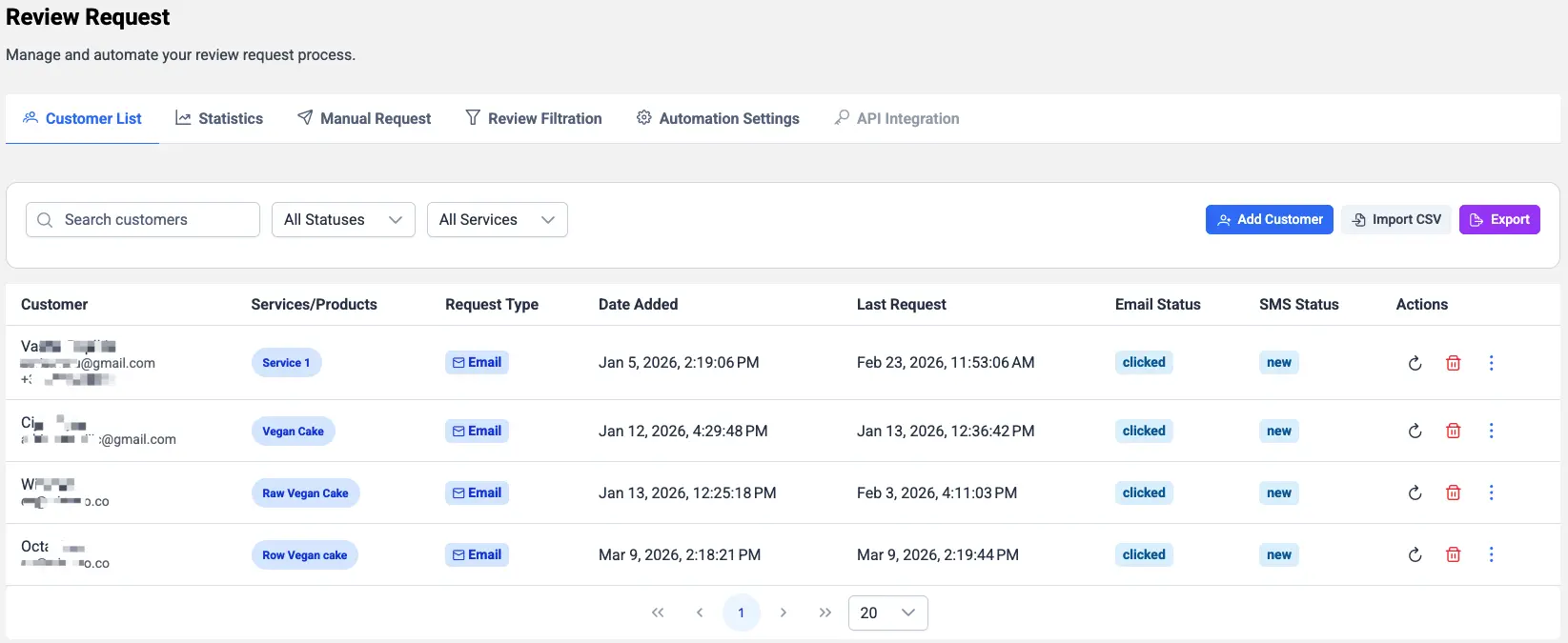
Review Request Campaigns
GLocal lets you send branded review request emails to your customer list, either immediately or on a schedule. You segment your customers, set the timing, and GLocal sends each one a personalized email with a star rating prompt. When they tap a star, they land directly on your Google review form. No manual follow-up, no copy-pasting links into individual emails.
Review Filtration
GLocal includes a review filtration feature that sits between your customer and Google. When someone clicks your review request link, they see a pre-rating screen first, either emoji-based or star-based. Customers who rate positively get forwarded straight to your Google review form. Customers who rate negatively get routed to a private feedback form so you can resolve the issue before it becomes a public 1-star review.
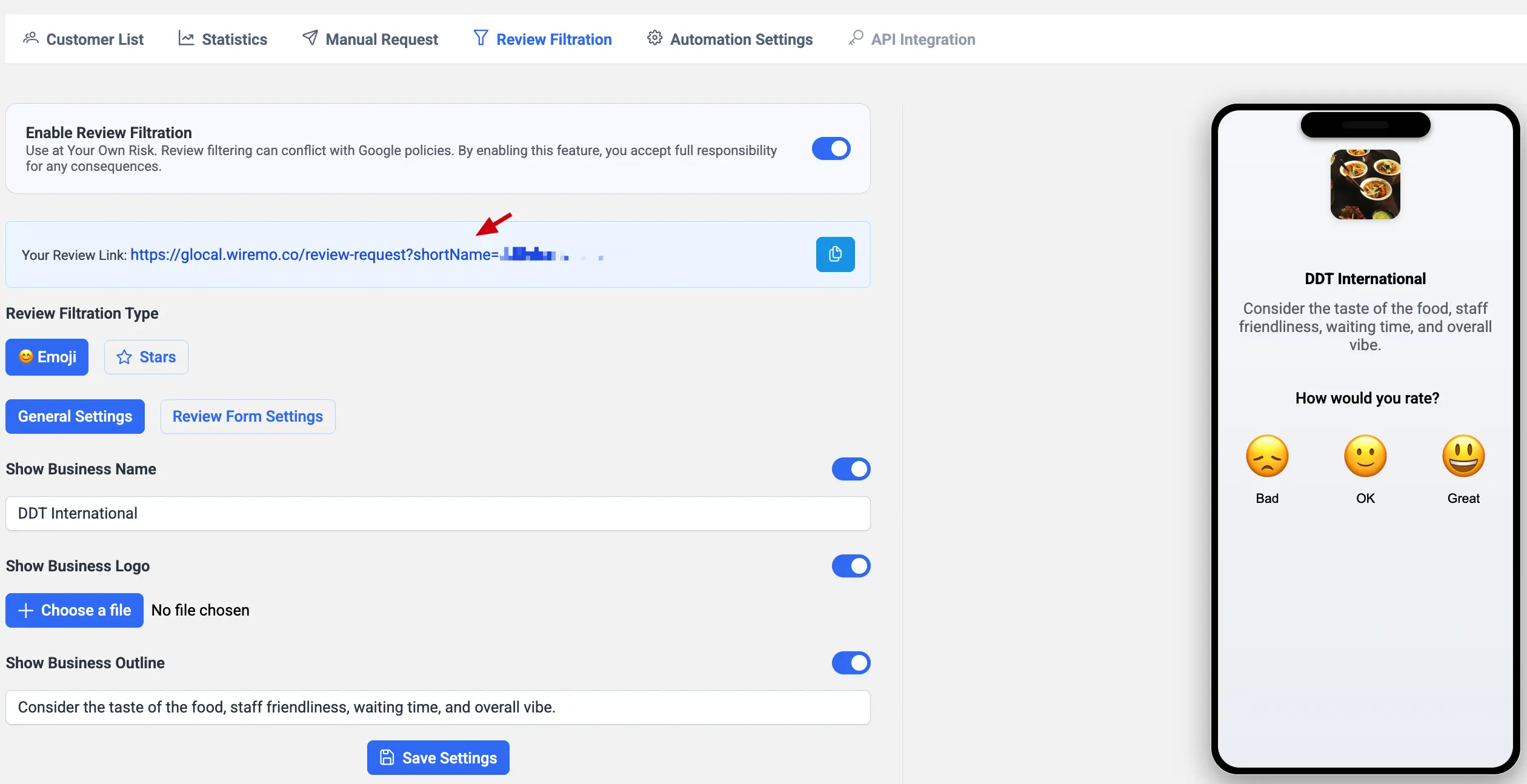
Important: Google's review policies prohibit selectively discouraging or blocking negative reviews. GLocal displays this warning before you enable the feature and requires you to accept full responsibility for its use. Use filtration to catch genuine complaints and resolve them privately, not to suppress honest customer opinions. Always check Google's review policies before enabling this feature.
Replying to Reviews with AI
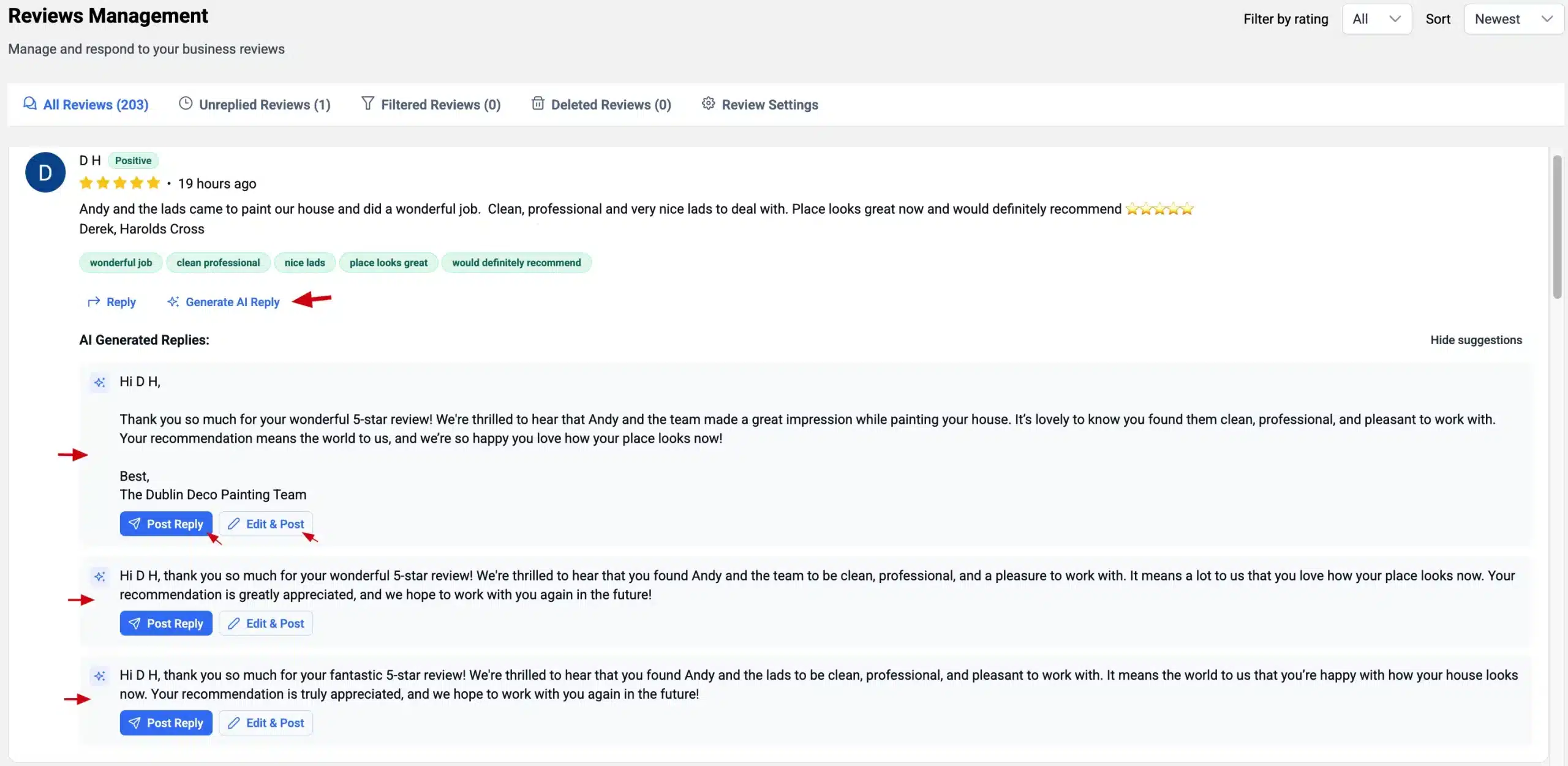
Once reviews start coming in, GLocal generates three different AI reply options for each one. Click "Generate AI Reply" on any review, and you get three ready-to-post responses, each with a slightly different tone and phrasing. You pick the one that fits best, post it directly, or open it to edit before it goes live.
Each reply is personalized to the specific review content. If a customer mentions your team by name or calls out a specific service, the AI picks that up and weaves it into the response. The result reads like something a real person wrote, not a canned "thanks for your feedback" template.
For high-volume profiles with 200 or more reviews, this removes the biggest bottleneck in review management. You're not composing responses from scratch or copying templates. Review the suggestion, make a quick edit if needed, and post. Combined with 18 months of review analytics, you get a clear picture of how your reputation is trending over time, three times more data than Google's native dashboard shows.
Bottom Line: Your Google review link is only the entry point. The businesses that build strong Google reputations treat review management as an ongoing system. Consistent requests, smart routing, timely responses, and rank monitoring all work together.
Frequently Asked Questions About Google Review Link
1. How do I send a review request to my customers?
GLocal's Google review request management tool lets you upload your customer list, segment it by location or service type, and send a branded email with a star rating prompt. Customers who tap a star land directly on your Google review form. You can send campaigns immediately or schedule them in advance. No manual follow-up, no copy-pasting links into individual emails.
2. How do I track my Google Maps ranking?
GTrack's Google Maps rank tracker shows you a geo-grid heatmap of where your business appears in local search results across your entire service area. You can run scheduled scans, track competitors, and get AI-powered insights that tell you exactly which neighborhoods you rank well in and where you're losing visibility. It works at the postcode level, not just a single average position.
3. How do I create a QR code for Google reviews?
The free Google Review QR Code generator creates a print-ready QR code and a short link in one step. Enter your business name, select it from the dropdown, and download. You also get access to 15 ready-designed templates, one free to use, so your QR code is ready to place on a counter card, receipt, or packaging insert straight away.
4. What is a Google review short link, and how do I create one?
A short link is a clean, shareable URL that takes customers directly to your Google review form without them having to search for your business. The Google Review QR Code generator creates this short link automatically alongside your QR code. You get both at once, one for digital sharing in emails, SMS, and signatures, and one for physical print placements.
5. What is review filtration, and how does it work in GLocal?
Review filtration is a feature inside GLocal that sits between your customer and Google. When a customer clicks your review request link, they see a pre-rating screen first. Customers who rate positively get sent straight to your Google review form. Customers who rate negatively get routed to a private feedback form so you can resolve the issue directly. Note that Google's policies prohibit selectively blocking negative reviews, so GLocal requires you to accept full responsibility before enabling this feature.
6. How does the AI reply to Google reviews work?
Inside GLocal's Google review management dashboard, each incoming review has a "Generate AI Reply" button. Click it, and you get three different ready-to-post responses, each with a slightly different tone. The AI reads the actual review content and personalizes the reply, picking up customer names, specific services mentioned, or details from the feedback. You pick the response that fits best, post it directly, or edit it first. For businesses with 200 or more reviews, this removes the biggest bottleneck in review management without making responses feel templated.