How to get a Google review removed: the full process
Getting a Google review removed takes more than clicking a report button. Only Google can delete a review, and only when it breaks a specific content policy. Most businesses give up too early because they don't know what comes after the first rejection.
This guide covers the complete path: from your first report, through an appeal, all the way to the final escalation option that very few businesses ever reach. Figure out where you are in the process and pick up from there.
Important: Google does not remove reviews simply because they are negative or unfair. A review must violate a specific policy to be eligible for removal. Before reporting anything, make sure you have a real policy violation to point to, or your request will be declined.
Step 1: Read Google's content policies before you report anything
Most removal requests get denied because the business owner picked the wrong reason or reported a review that doesn't actually violate any rule. Before you try to get a Google review removed, spend five minutes reading Google Maps' user-contributed content policies. That alone will save you days of waiting for a predictable rejection.
When you submit a report, Google asks you to pick a violation category from a fixed list. Picking the wrong one is one of the most common reasons requests get rejected. Read each category below, check the signals, and match your review to the right one before you report.
Spam or fake content
This is the most reported category and the hardest to prove. Google's bar here is higher than most people expect. "I don't recognise this person" is not enough on its own.
Signals to look for: The reviewer has zero other reviews, or their account was created very recently. The review text is generic and could apply to any business in your category. Multiple one-star reviews arrived in a short window from accounts with similar profiles. The reviewer is a known competitor or a former employee you can identify.
Example of a review that qualifies: A one-star review with no text, posted by an account with no profile photo, no other reviews, and a username that looks auto-generated. Or a review that reads "Terrible service, avoid at all costs" with no details about what the service actually was.
Example of a review that does NOT qualify: A customer who had a bad experience and described it in detail, even if you believe they're exaggerating. Genuine frustration is not fake content.
Off-topic content
This category covers reviews that are not about the customer's actual experience with your business.
Signals to look for: The review mentions a political issue, a social cause, or a news event rather than a service or product. The review is clearly about a different business with a similar name. The text is a general rant that contains no reference to a real transaction or visit.
Example of a review that qualifies: Someone posts a one-star review of a restaurant to protest a planning decision in the local area, mentioning nothing about the food or service. Or a review posted to your profile that is clearly meant for a different business entirely.
Example of a review that does NOT qualify: A customer who complains about your parking, your location, or your hours. Even if you think those things aren't your fault, they are part of the customer experience at your business.
Harassment or hate speech
This covers reviews that target specific people rather than the business, or that use discriminatory language.
Signals to look for: The review names a specific employee and attacks them personally rather than describing a service failure. The review includes slurs, threats, or language targeting someone's ethnicity, gender, religion, or other identity. The tone is an attack on an individual, not a critique of the business.
Example of a review that qualifies: "The woman at the front desk, [name], is a racist and should be fired" with no other context. Or a review containing a slur directed at the owner or a staff member.
Example of a review that does NOT qualify: "The staff were rude and dismissive" or "the manager handled my complaint badly." Criticism of how someone behaved professionally is fair game.
Obscene or explicit content
This is usually the easiest category to get actioned because the violation is visible immediately.
Signals to look for: The review contains profanity, graphic sexual language, or descriptions of violence. Even a single word can qualify if it meets the threshold for obscene content under Google's policy.
Example of a review that qualifies: Any review that uses an expletive as an insult directed at the business or its staff. Or a review that includes sexually explicit language completely unrelated to the service.
Private information
This covers reviews that expose personal data about identifiable individuals.
Signals to look for: The review includes a phone number, home address, email address, or financial information belonging to a specific person. This applies to both staff members and other customers mentioned in the review.
Example of a review that qualifies: A review that includes what appears to be a staff member's personal phone number or home address as part of a complaint or threat.
Illegal content
This is the least common category but one of the strongest grounds for removal when it applies.
Signals to look for: The review contains an explicit threat of physical harm. The review includes content that would constitute defamation under applicable law (a provably false factual statement presented as true, not just a negative opinion). The review promotes an illegal activity.
Example of a review that qualifies: "I know where you live and you'll regret this" posted alongside a one-star rating. Or a review that states as fact something that is demonstrably, verifiably false rather than a matter of opinion.
Tip: If you're unsure which category fits, choose the one that is most specific to the actual language or behaviour in the review. "Spam or fake content" is often used as a catch-all, but a review that contains a threat is better reported as illegal content. Google's reviewers look at the category you selected, and a precise match makes the case stronger.
If the review you're dealing with fits one of those categories, proceed to Step 2. If it's a harsh but genuine opinion from a real customer, the removal route is unlikely to work. Your time is better spent responding professionally and building up more positive reviews around it.
Step 2: Submit the removal request through the Reviews Management Tool
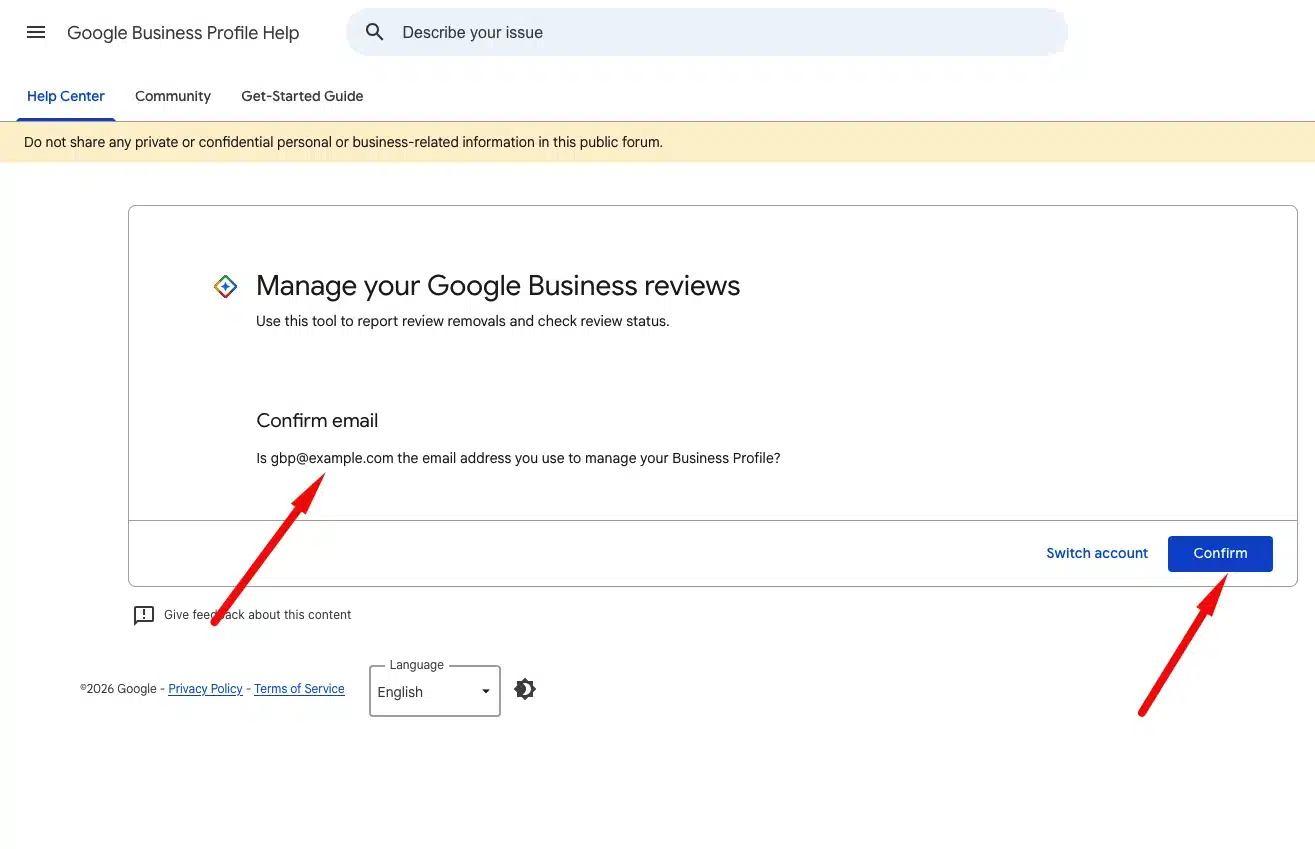
This is the official process. Do not skip straight to contacting support. The Reviews Management Tool is the correct starting point, and Google won't escalate a case until you've used it.
- Log in to Google using the account that manages your Business Profile (owner or manager access required).
- Go to the Reviews Management Tool at this page. You'll see a screen asking you to confirm the email address associated with your profile.
- Confirm your email address. If the wrong account is showing, click "Switch account" before continuing.
- Select your business from the list. If you manage multiple locations, make sure you pick the right one.
- When asked "What would you like to do with your reviews?", select "Report a new review for removal" and click Continue.
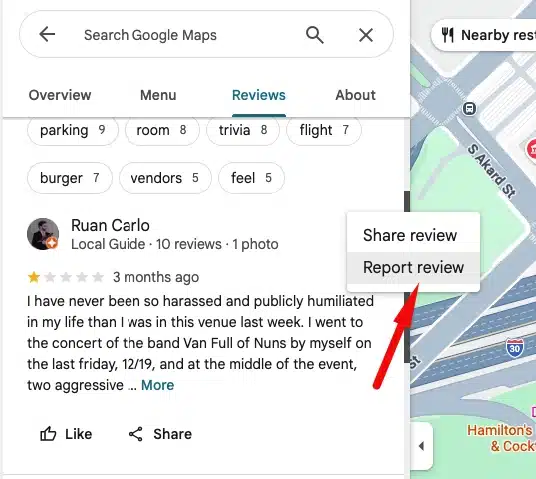
- Find the review in the list and click "Report" next to it. This opens a new tab.
- Select the policy violation that matches the review and click Submit. Be specific. Vague categories get rejected faster.
After you submit, Google will email you to confirm the request has been received. The email will also tell you the current status. Google states that reviews may take up to three days to evaluate, but in practice the window can be longer.
Tip: Before submitting, document the review. Click the reviewer's name, open the review itself, and copy the URL. You'll need this URL later if you have to escalate.
Step 3: Check the status after five days
If the review is still live after five days, check the status in the Reviews Management Tool at this URL.
You'll see one of three statuses:
- Decision pending — the review has been flagged but not yet evaluated. Give it more time.
- Report reviewed, no policy violation found — Google evaluated the review and decided it doesn't break any rules. You can submit a one-time appeal.
- Escalated, check your email for updates — the case has moved up the chain and you'll be notified by email with a decision.
If the status shows "no policy violation found" and you disagree with that decision, don't stop there. Use the appeal option.
Step 4: Appeal the decision
From the same Reviews Management Tool page, select "Appeal eligible reviews." Pick the review you want to challenge and fill out the appeal form.
The appeal is your best opportunity to make a structured argument. Don't just say the review is fake. Explain exactly which policy it violates and why. If you have evidence, such as transaction records showing the reviewer was never a customer, or screenshots showing the reviewer's profile has also targeted other businesses, reference it.
When your appeal is submitted, Google will send you a case number. That number appears on the reporting screen and in the subject line of the confirmation email. Save it. You'll need it in the next step.
Resolution of an appeal typically takes another five to seven days.
Step 5: Wait for the final decision
After the appeal, you'll receive a final decision by email. Two outcomes are possible:
- The review is removed — it will no longer appear on Maps or Search.
- The review stays — Google determined it complies with its policies, even after the appeal.
If the review stays after the appeal, you have one remaining option before closing the case.
Step 6: Escalate to the Google Business Profile community
This step doesn't guarantee removal, but it gives the case one final look. Post to the Google Business Profile Help Community and include all of the following:
- Your business name
- Your Google Maps profile URL
- The case number(s) from your appeal confirmation emails
- The direct link(s) to the reviews in question
Community managers and Google product experts who monitor the forum can sometimes push the case for a fresh review by a specialist. Without those four pieces of information, there's very little anyone can do to help you. With them, there's a chance of a second assessment.
Important: This is a public forum. Do not share personal customer information or private correspondence in the post. Keep it factual and focused on the policy violation.
When you can't get a Google review removed: what to do next
If you've gone through every step above and the review remains, Google has assessed it and concluded it doesn't violate policy. That's frustrating, but it's where reputation strategy matters more than the removal process.
A few things that actually move the needle:
- Respond to the review publicly — a calm, professional response signals to every reader that you take feedback seriously. It often does more for your reputation than the removal would have.
- Generate more positive reviews — one one-star review inside a pool of fifty four-star reviews barely moves your average. Actively ask satisfied customers to share their experience.
- Monitor for new violations — repeat offenders or coordinated fake review attacks are easier to document and report over time. Keep records of every case number and every URL.
Catching problematic reviews early matters. If a fake review sits live for two weeks before you notice it, it has already been seen by every potential customer who searched for you in that window.
GLocal: Google Business Profile management software like GLocal monitors your reviews in real time, alerts you when new ones appear, and lets you respond directly from one dashboard. The faster you spot a suspect review, the faster you can start the removal process before it does damage.
Track your local visibility while you manage your reputation
Review removal is one piece of the local SEO picture. While you work through the process, it's worth knowing how the review is affecting where you appear on Google Maps across different areas. A concentrated attack of fake reviews can push your rankings down in specific locations even before your average star rating moves much.
If you want to see exactly where you rank in your service area and spot position drops that might correlate with reputation issues, a Google Maps rank tracker gives you that view across a geographic grid so you can see the full picture, not just your profile page.