How to Record and Upload Your Google Business Profile Video Verification
You must use the Google Maps app on your mobile device, logged into the same Google account that manages the Business Profile. Desktop and pre-recorded uploads are not accepted.
- Open Google Maps on your phone. Do not use a browser or Google Search. The recording option only appears inside the Google Maps app.
- Tap "Get verified" on your Business Profile. Find your profile inside the app, then tap the "Get verified" button.
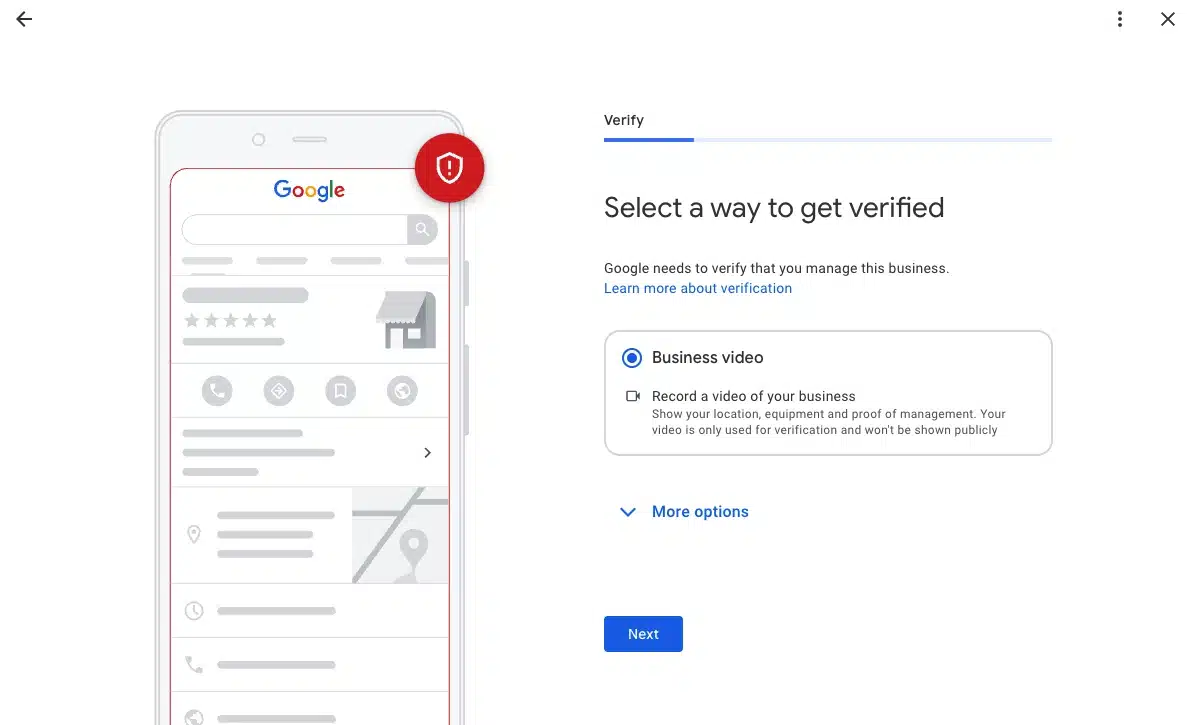
- Select "Business video" then tap "Next". If both phone code and business video options appear, choose Business video.
- Read the requirements, then tap "Next" again. Allow access to your location, camera, and microphone when prompted.
- Position yourself outside before you tap "Start recording". Be physically outside your business address before you begin. Once you start, you cannot pause or cut the recording.
- Walk through your verification route in one continuous take. Follow the 9-step filming checklist below without stopping. Target 60 to 90 seconds total.
- Review the footage, then tap "Upload video". Watch it back before submitting. If anything is unclear or missing, tap "Try again" to re-record.
- Stay on a stable network during the upload. If your phone switches between Wi-Fi and mobile data mid-upload, Google may read the video as discontinuous and reject it. Switch fully to mobile data if your office Wi-Fi is patchy.
Timing: Google recommends most successful videos are 1 to 2 minutes long. Under 30 seconds will fail for insufficient coverage. Over 2 minutes can cause upload errors. After submission, review takes up to 5 business days.
Why Google Now Requires Video Verification
Google introduced video verification to eliminate fake and spam listings. Postcard verification was easy to game: a code gets mailed to any address, entered, and a fraudulent listing goes live. Video verification requires real-time, unedited proof that your business physically exists where you claim it does, and that you actually manage it. It is significantly harder to fake, which is why Google is rolling it out as the default.
For legitimate businesses, the consequence is stricter review criteria. Following the checklist below exactly is the difference between a profile that goes live this week and one stuck in limbo while you resubmit repeatedly.
- 5 business days — how long Google takes to review a submitted video
- 30 seconds minimum — Google recommends 1 to 2 minutes
- Zero cuts or edits allowed — one continuous take, start to finish
What Google Actually Needs to See in Your Video
Every element of your recording should serve one of these three proofs. Google's reviewers evaluate submissions against all three.
Proof of location
Show where your business is in the real world. Capture recognisable external landmarks: street signs, building numbers, intersections, or nearby businesses. Generic footage of an unmarked street will not pass. Google needs to connect the footage to the address on your profile.
Proof of existence
Show that the business actually operates at this location. For storefronts, clearly capture your permanent signage. The name on the sign must match your GBP name exactly. Handwritten signs, printed paper taped to windows, or temporary banners are consistently rejected. For service area businesses, show the tools, equipment, branded materials, or vehicles that prove real operations.
Proof of management
Show that you have authority over the location. Unlock the front door, open a cash register, access a staff-only area, log into a point-of-sale system, or show official business documents (license, utility bill, lease). The goal: a stranger could film the sign, but only the actual manager can demonstrate this kind of access.
| Business Type | Proof of Location | Proof of Existence | Proof of Management |
|---|---|---|---|
| Storefront | Street signs, building numbers, nearby landmarks | Permanent on-site signage matching GBP name exactly | Unlock door, open register, access staff-only area |
| Hybrid | Same as storefront | Storefront signage plus branded vehicles if available | Same as storefront |
| Service Area | Street signs and landmarks near your registered address | Branded tools, vehicles, business cards, uniforms | Business documents, branded vehicle key, software login |
Before You Hit Record: The Pre-Verification Checklist
The most common cause of rejection is not the video quality. It is inconsistencies between the video content and the profile details. Do this before you record:
- Confirm your GBP name matches your physical signage letter for letter, including capitalisation and abbreviations.
- Confirm your listed address matches what appears on your business license, utility bill, and official documents you plan to show.
- Check your NAP (name, address, phone) is consistent across your website, Yelp, Facebook, and other major directories.
- Make sure the Google account on your phone is the same account that manages the GBP.
- Ensure your phone has enough storage for a 1 to 2 minute video.
- Test your camera and lighting before starting. Natural daylight is ideal.
- Prepare business documents (business license, utility bill, lease) so they are within reach during recording.
- Clear any previous failed verification video attempts: GBP app > Business Profile settings > Advanced Settings > Video Uploads.
- Plan your physical route in advance. You cannot stop and restart once recording begins.
Critical: You cannot record the video offline and upload it later. The entire recording must be done live through the Google Maps app. Pre-recorded videos are not accepted under any circumstances.
Step-by-Step: What to Show in Your GBP Verification Video
Walk through these steps in sequence during a single continuous recording. Do not stop the recording between steps.
- [All business types] Show the Area Around Your Business. Begin outside before reaching your entrance. Capture street signs, intersections, building numbers, and nearby businesses. Aim for 15 to 20 seconds of clear exterior context. If you cannot go outside, point the camera out a window toward a recognizable street sign or landmark.
- [Storefront & Hybrid] Show Permanent Signage or Use the "Elevator Hack". Approach your entrance and hold the camera steadily on your signage. The business name must be clearly legible and match your GBP name exactly. No temporary signs, no printed paper. If inside a shared building without exterior signage, point the camera out a window to capture a street sign or landmark — this is the "elevator hack" that works for offices inside large buildings.
- [All business types] Show Your Workspace or Where Work Happens. Walk inside and record the space where business operates. Office: desks, computers, working environment. Retail: sales floor, product displays. Restaurant: kitchen or dining area. Service area business: your home office, garage, or storage area where you manage bookings and equipment.
- [All business types] Show Tools, Equipment, or Inventory. Include physical proof of what your business does. Restaurants show kitchen equipment. Barbershops show chairs and stations. Contractors show branded tools. Professional services show computers or industry equipment. For service area businesses this element is particularly important, replacing the role signage plays for storefronts.
- [All business types] Show Branded Assets. Point the camera at anything bearing your business name or logo: uniforms, company vehicles, business cards, printed materials, or branded packaging. For service area businesses this bridges the gap between "this is my home address" and "this is a real, operating business."
- [Storefront & Hybrid] Open Your Vehicle or Equipment. If you have a company vehicle, unlock it and show the interior: tools, branded materials, or work equipment. For businesses without vehicles, demonstrate access to a secure storage area or piece of equipment only an authorised manager would have access to.
- [All business types] Show That You Can Access the Location. Demonstrate authority. Unlock the front door, open a gate, access a staff-only room, or open a cash register. For service area businesses at home, show yourself unlocking your vehicle or accessing secured equipment storage.
- [All business types] Show Official Business Documents. Hold up a business license, utility bill, or lease agreement so it is clearly readable. The document must show your business name and address. Do not include documents with bank account numbers, tax ID numbers, or personal ID.
- [All business types] Show Access to Business Systems. End the recording by demonstrating access to a business system only you as owner or manager would have: logging into a CRM, booking software, accounting platform, or point-of-sale system. For real estate, the MLS. For a salon, the booking software.
Special Rules for Service Area Businesses
Service area businesses (SABs) visit or deliver to customers but do not operate from a publicly accessible storefront. Plumbers, electricians, cleaners, landscapers, and mobile professionals all fall into this category. Google's requirements differ for SABs, and these businesses tend to have a harder time with video verification as a result.
The key difference: there is no signage-verified storefront to show. The video needs to compensate with stronger operational proof. Branded vehicles are the most effective element — they carry your business name and are usually parked at your registered address. Show the vehicle, open it, and show the equipment or tools inside.
If you operate from home, you do not need to show personal living spaces. Record outside and capture landmarks and street signs near your home address. Then show your branded equipment, vehicle, or home office where you manage bookings and operations.
SAB note: Google explicitly allows service area businesses to record at their home address and show landmarks in the immediate neighbourhood to confirm the address. You are not required to film at a client location or demonstrate an active service call, though doing so always helps.
Common Reasons GBP Video Verification Gets Rejected
Based on Google's official rejection notices and practitioner experience across thousands of verifications:
- Business name on signage does not match the GBP profile. Even minor differences — a missing "The," different punctuation, or an abbreviation — cause rejection. Check both before recording.
- No surrounding area shown. Starting inside your business without any exterior context almost always fails. Begin outside with recognizable geographic markers.
- Footage too dark or blurry. Record in natural daylight or a well-lit interior. Stabilize the camera. Shaky or out-of-focus footage is a frequent rejection reason.
- Video too short or too long. Under 30 seconds fails for insufficient coverage. Over 2 minutes can cause upload issues. Target 60 to 90 seconds.
- No proof of management. Showing exterior and interior without demonstrating authority over the location is not enough. Unlocking a door or opening a register is required, not optional.
- Wi-Fi dropout during upload. If your phone switches between Wi-Fi and mobile data while uploading, Google may read this as a video discontinuity and reject it. Upload on a stable connection, or switch fully to mobile data.
- Video recorded from the wrong Google account. The recording must be made from the account that manages the GBP. Recording from a personal Gmail while the profile is on a work account is a common technical mistake.
- Temporary or non-permanent signage. A printed sheet in a window or a banner draped across the building does not count. Google requires a fixed, permanent sign present during any normal business day.
What to Do If Your Video Was Rejected
Do not immediately re-record and resubmit. Read the rejection reason first. In the Google Maps app, tap "Review issues" to see the specific reason. Google provides reasons such as "Business name not visible on storefront," "No nearby area shown," or "Missing proof of authorization to operate the business." Each tells you exactly what to fix before recording again.
If the upload keeps failing technically, contact Google Support directly. Provide at least three documented submission attempts (dates and times), confirm your videos are under two minutes and recorded continuously, and explicitly request a live video call verification as an alternative. Live video calls with a Google representative are often faster than repeated self-recorded submissions.
Do not make changes to your GBP while a verification is pending. Editing your business name, address, or category during the review window can invalidate the submission and force you to start over. Wait for the result before making any profile edits.
Once Verified, What Comes Next?
A verified profile that is not actively managed is like opening a new store and then forgetting to turn on the lights. The businesses dominating local search are not the ones that simply got verified — they are the ones that built a management system around their profile immediately after.
Reviews are now your most important ranking signal
A freshly verified profile with no reviews is invisible compared to a competitor with 80 reviews and a 4.7-star rating. Getting your first wave requires an active strategy: a direct review link shared with recent customers, a QR code at your location, or automated review request emails sent after every transaction.
Your profile needs fresh activity to rank
Google treats profile activity as a signal of business health. Profiles with regular posts, new photos, and active review responses rank better than dormant ones. Businesses ranking in the Local 3-Pack for competitive searches are posting at least weekly and responding to every review within 24 to 48 hours. Once your profile is live, use a Google Maps rank tracker to see exactly where you appear across your service area — you may rank #1 near your address but drop to position #8 just a mile away.
Re-verification is a risk you need to plan for
Major changes to your profile — business name, address, primary category — can trigger mandatory re-verification. If your profile is temporarily suspended during that review window, you lose visibility for the entire period. Monitoring your profile for unexpected changes gives you early warning before the damage is done.
GLocal by Wiremo handles the full post-verification workload automatically: review collection campaigns, AI-powered review responses, a negative review filtering funnel, automated Google post scheduling, real-time review alerts, 18 months of analytics, and complete review history backup — so your verified profile keeps growing without consuming your time. Google Business Profile management software →